

How to Manage Widgets and Styles
Zyre Addon gives you full control over which widgets are active on your website, helping you keep things lightweight and focused. You can easily enable or disable widgets straight from the WordPress admin panel.
Getting Started with Widget Management.
Access Widget Settings:
Log in to your WordPress admin panel and navigate to Dashboard → Zyre Addons → Widgets to open the widget management page.
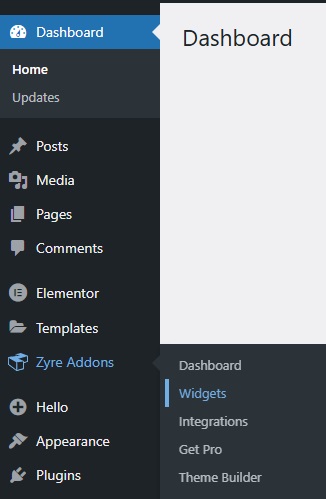
Widget Control & Navigation Panel:
This section provides quick access to navigation, global widget controls, and saving options to manage your setup efficiently.
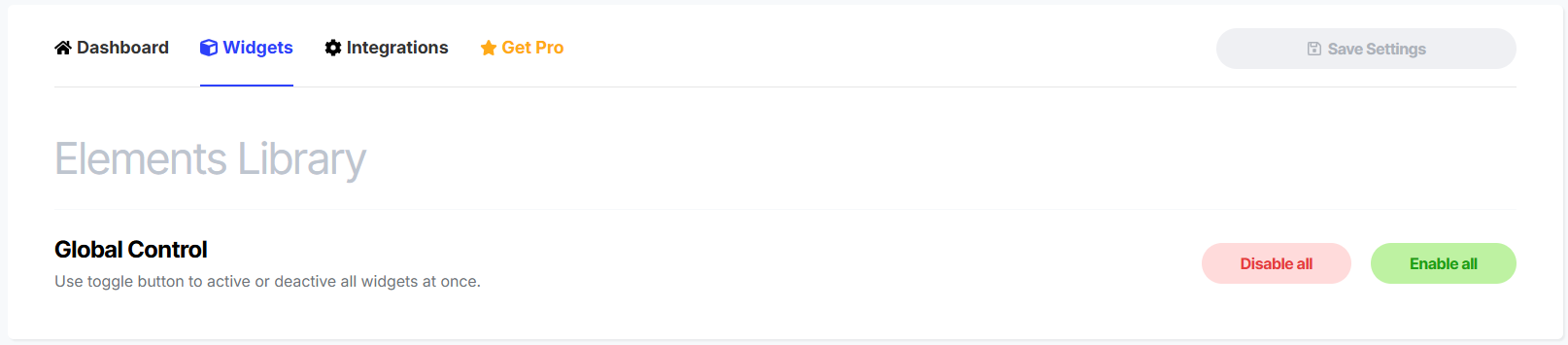
Global Control
- Enable All : Instantly activate all Zyre Addon widgets.
- Disable All : Deactivate all widgets with a single click.
Save Settings Button
- Save Settings : Apply and store all widget and style changes. Always make sure to click this after enabling or disabling widgets to ensure updates take effect.
Widgets Library Section:
The Widgets Library displays all available widgets in an organized layout.
Left Sidebar – Widget List
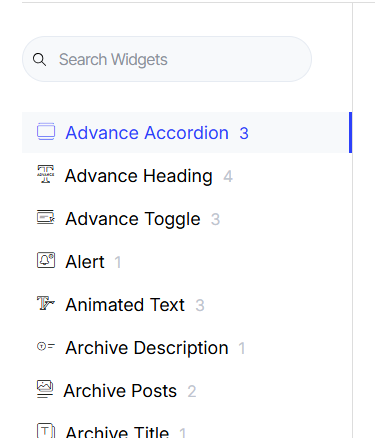
- Shows a searchable list of all widgets.
- Each widget name includes a number indicating how many styles it offers.
- Using the search field filters widgets by name.
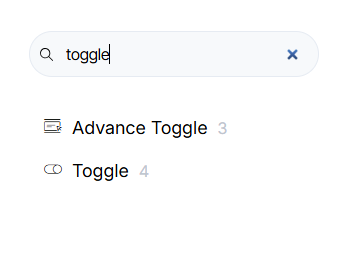
- Clicking a widget loads its preview and style controls on the right.
Widget Details Panel

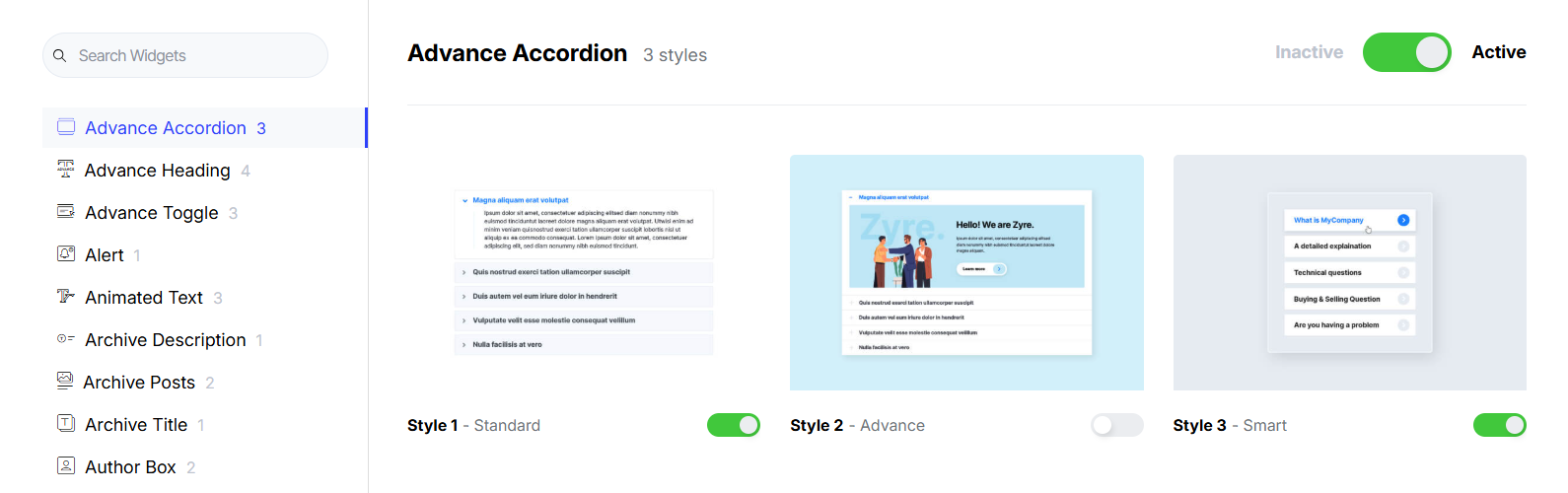
When a widget is selected (e.g., Advance Accordion), the right panel displays:
Widget Status
- Active / Inactive Toggle :
Enable or disable the entire widget.- Active widgets appear inside Elementor.
- Inactive widgets are hidden from the editor.
Widget Styles Control
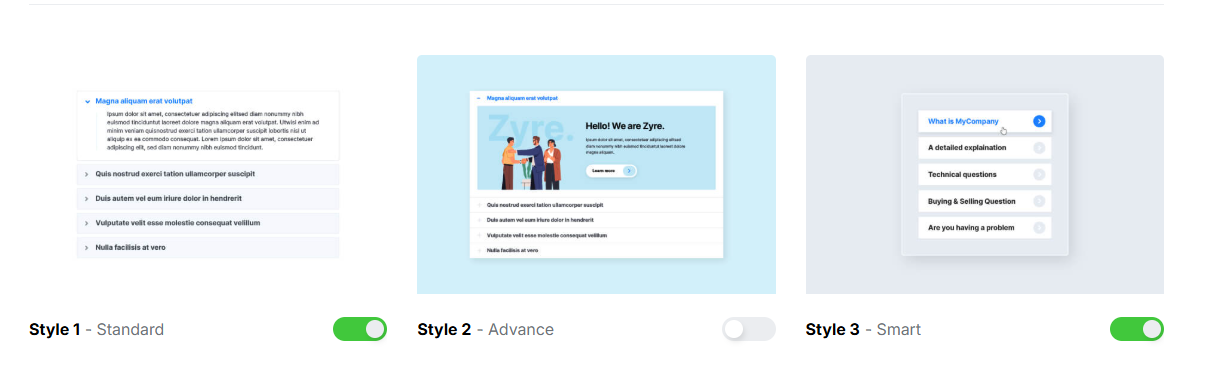
Each widget includes multiple predefined styles:
- Style Toggles : Enable or disable individual styles for the selected widget.
- Disabling a style removes only that specific design variation.
- Other styles for the same widget remain unaffected.
This allows precise control—use only the styles you need while keeping others intact.
