

How to Fix Layout Width Issue
When adding Zyre widgets to a page using Elementor Editor Panel, layout width plays a crucial role. By default, Elementor uses a 1140px content width, which may cause some Zyre predefined designs to appear compressed or misaligned. To ensure these designs display correctly, the layout width might need to be adjusted to 1432px.
Tutorial on setting Layout Width:
Exploring How to Setting Layout Width
Step 1: Create or Edit a Page
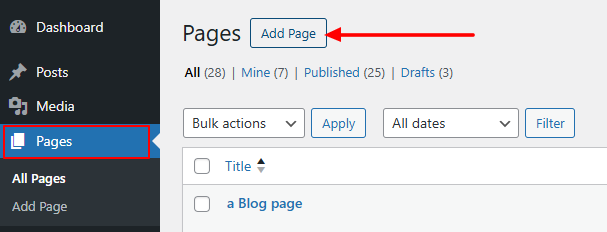
- Go to Dashboard → Pages → Add New (or edit an existing page)
- Click Edit with Elementor

Setting Width for Individual Sections or Entire Site
Before changing global site settings, you can also control layout width per section or widget:
- Select the Container in the Elementor editor
- Go to Container → Content Width
- Set the width to 1432px for that specific container
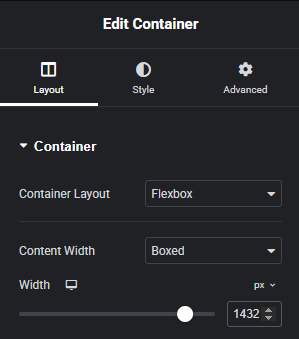
This ensures Zyre’s prebuilt designs display in their intended proportions and layout without affecting the rest of the site.
If you want this 1432px width to apply across the entire website, follow the steps below to update the global layout settings.
Step 2: Open Site Settings
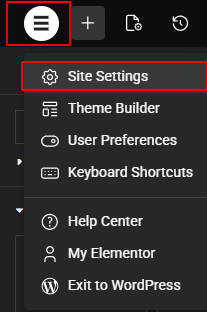
- Click the Elementor Logo (☰) in the top-left corner
- Select Site Settings
Step 4: Go to Layout Settings
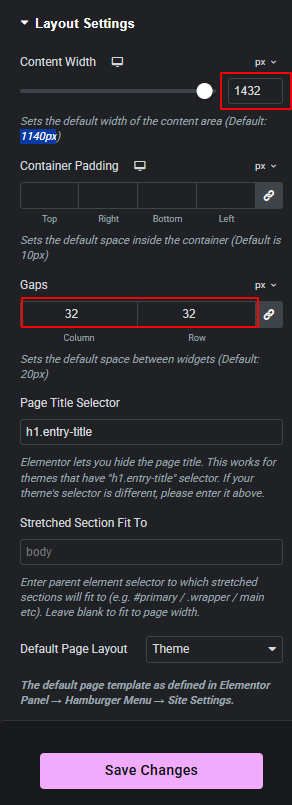
Inside Site Settings, click Layout.
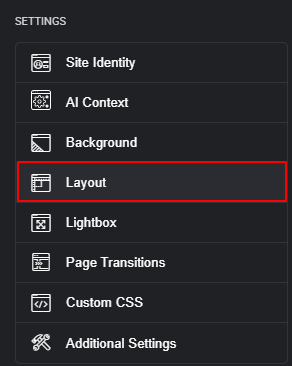
Here you’ll see layout-wide controls that affect how content is displayed across the page.
Step 5: Set the Content Width
- Content Width : Set this to 1432px
- Widgets Space : Adjust the gap as needed (based on design requirements)
Finally Click on Save Changes button to save your layout settings.
Why This Is Important
Some Zyre predefined designs are built for wider layouts. If the page width remains at Elementor’s default 1140px, these designs may not render as intended. Setting the correct width ensures proper spacing, alignment, and visual balance.
💡 Tip: These settings apply globally within Elementor. Once set, you won’t need to adjust the width again for pages using similar Zyre layouts.
