

How to Import Templates from Zyre Library
Zyre Library gives you instant access to professionally designed templates that help you build pages faster without starting from scratch. Whether you’re creating a full page, a hero section, or a reusable block, Zyre templates are fully customizable – every section, widget, and style can be edited to match your exact design needs.
Getting Started with Zyre Library.
Step 1: Open the Zyre Library
Inside the Elementor editor, click the Zyre Library icon. This opens the Zyre template library panel.
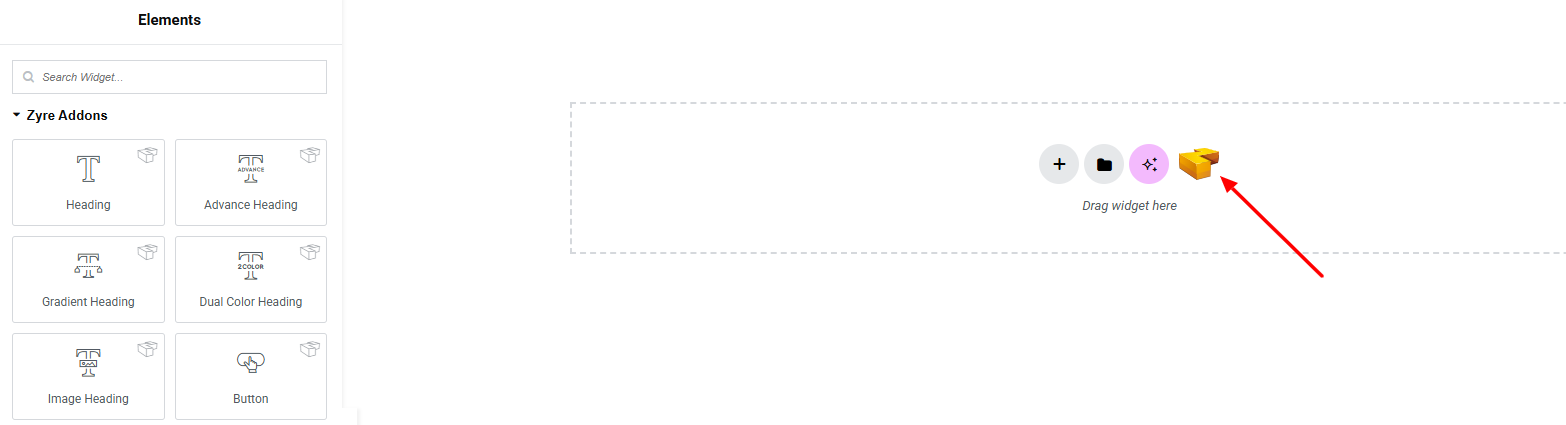
Step 2: Choose a Template Category

From the library panel, select the template type you want:
- Hero Section: Hero Sections are designed for the top area of a website or page. It’s the first impressions that grab attention immediately.
- Blocks: Blocks are pre-designed section layouts. You can mix and match blocks to build pages faster and more efficiently.
- Pages: Pages are complete, ready-made layouts that include multiple sections combined into a full page structure.
To help you find the right template faster, Zyre Library also provides:
- Filter Options : Narrow down templates based on category or layout type.
- Search Bar : Quickly find templates by name or keyword.
- Sync Library : Refresh the library to load the latest templates and updates.
Step 3: Import a Template

After Hovering on each template, you will show options for insert the template directly or can preview the template.
- Preview: You can preview each template before importing to ensure it fits your design needs.
- Insert: Click Insert on your chosen template. The template will be added directly to your page.
Customize Every Part of the Template:
Once imported, you have full control over the design. Each template is just a starting point—you’re free to design it exactly the way you want. You can Edit text, images, icons, or colors. Adjust spacing, typography, and layout. Replace sections or widgets. Add or remove elements as needed.
⚠️ Important Note: After importing and before customizing a template, we recommend you to click the Publish button and Reload the page. Otherwise, the design may revert to Zyre’s default widget layout and hamper the template design.
SVG Not Showing? Here’s How to Fix It:
Sometimes SVG files included in templates may not display properly due to WordPress security restrictions. This can be fixed easily from the settings.
Enable SVG Upload Permission:
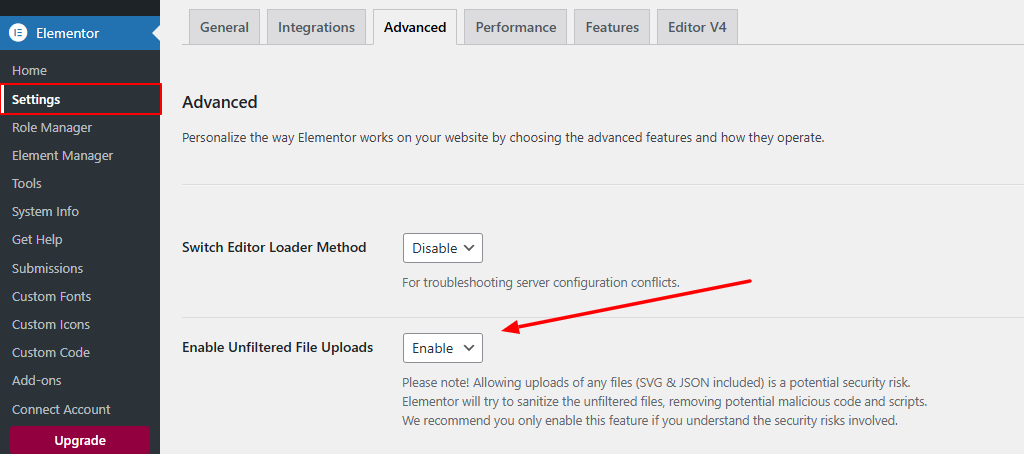
- Go to your WordPress Dashboard
- Navigate to:
Elementor → Settings → Advanced - Find Enable Unfiltered File Uploads and make it Enable
- Save your changes
This allows SVG files to load correctly across all pages and templates.
Save Time Without Losing Flexibility:
Zyre Library templates help you:
- Build pages faster
- Maintain consistent design
- Avoid repetitive layout work
- Still keep total creative freedom
You’re not limited by presets—everything remains editable.
