

Manage Background
Tutorial on Background styling of Zyre Addon
With Zyre Addon’s Background settings, you can shape the look and depth of any section with precision. From solid colors and gradients to images and overlays, every option helps you build richer, more expressive visuals. These tools let you craft backgrounds that not only enhance your layout but also set the tone and mood of your entire design. The same settings and controls apply to all widgets, giving you consistent design freedom throughout your site.
Learn How To Use Background:
Exploring the Features of Background.
The Container Styling section lets you customize the background of any container with complete flexibility. You can choose from Classic, Gradient, Video, or Slideshow effects both for normal and hover states—giving you the freedom to create dynamic, visually engaging sections that perfectly match your design vision.
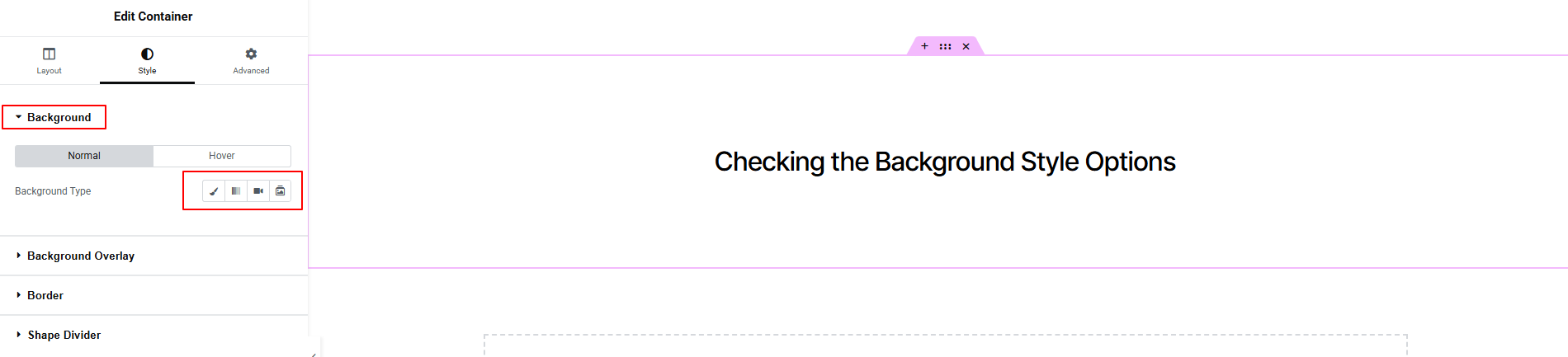
Classic Background:
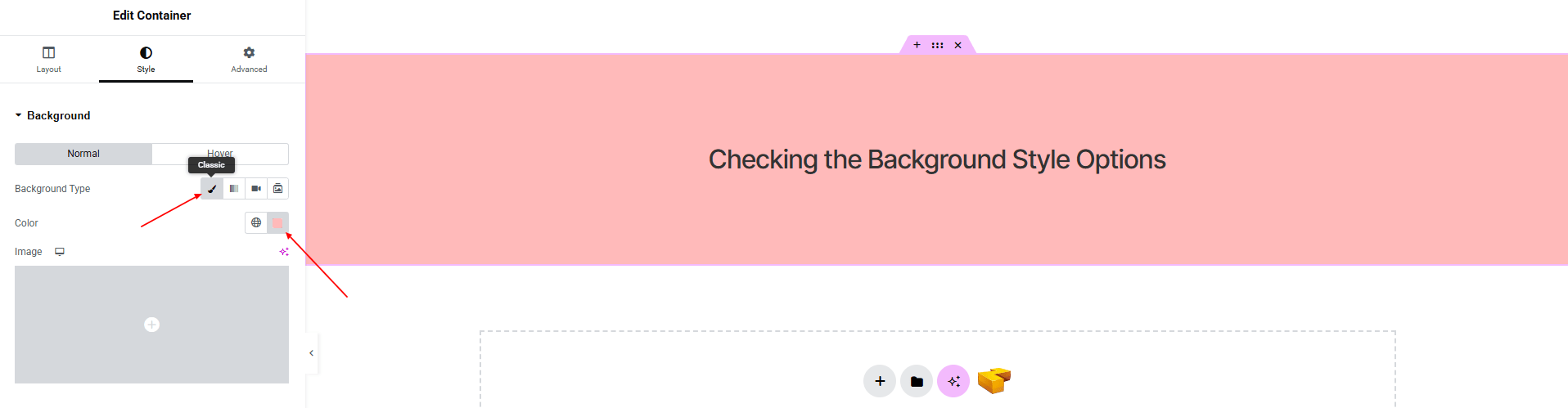
- Color : Set a solid background color for the container.
- Image : Use an image as the background.
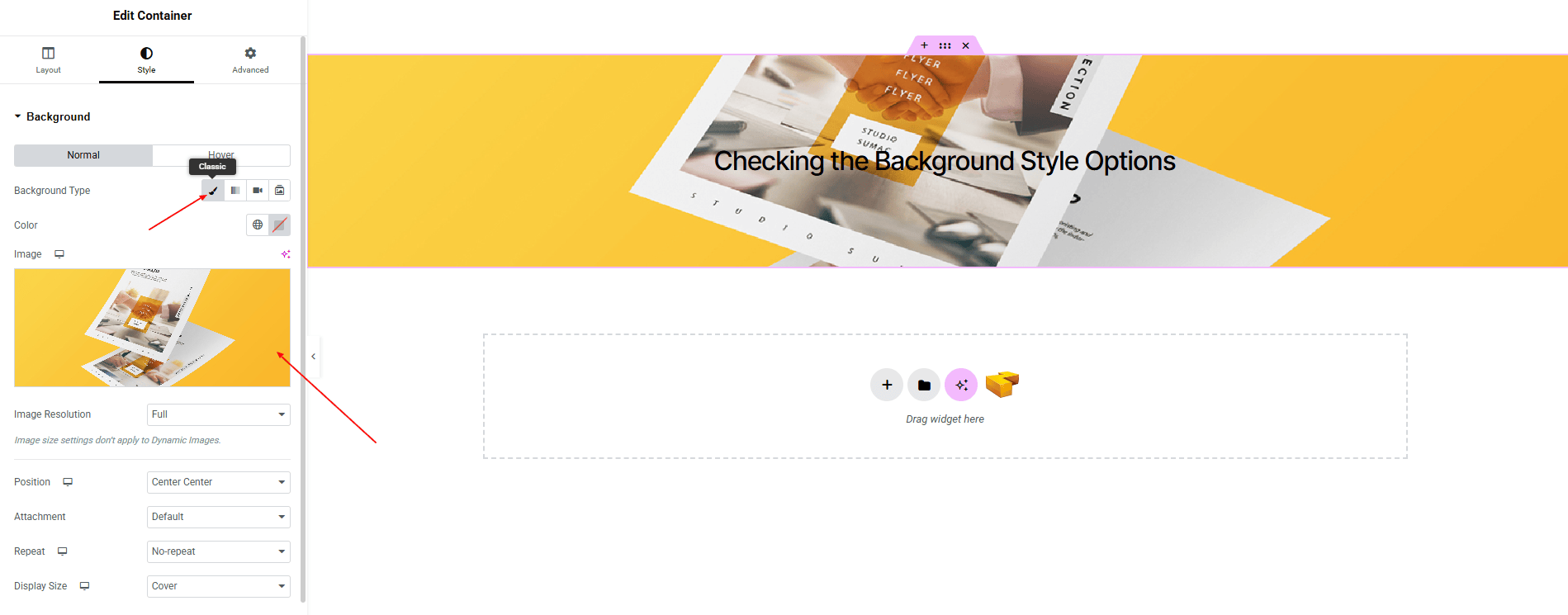
- Image Resolution : Choose the quality/resolution of the background image.
- Position : Set the image alignment within the container.
- Attachment : Choose fixed or scroll behavior for the image.
- Repeat : Control whether the image repeats or not.
- Display Size : Define how the image scales within the container.
Gradient Background:
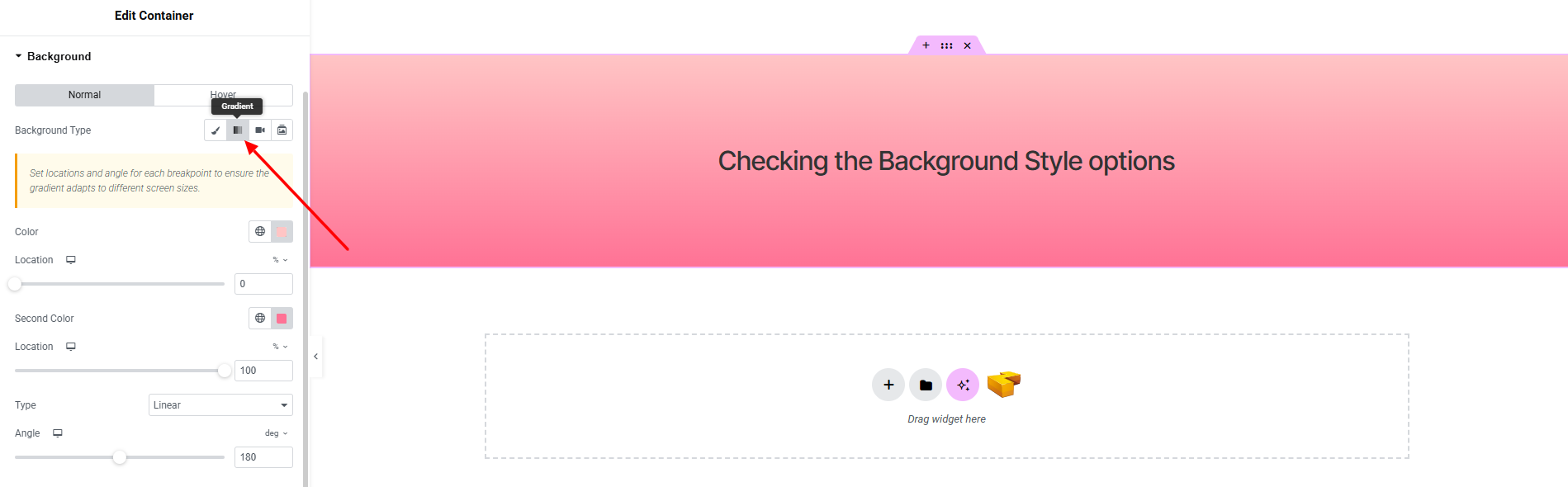
- Color : Choose the starting color of the gradient.
- Color Location : Adjust where the starting color begins within the gradient.
- Second Color : Choose the ending color of the gradient.
- Second Color Location : Adjust where the ending color transitions within the gradient.
- Type : Select the gradient style (linear or radial).
- Angle : Control the direction of the gradient when using a linear type.
Video Background
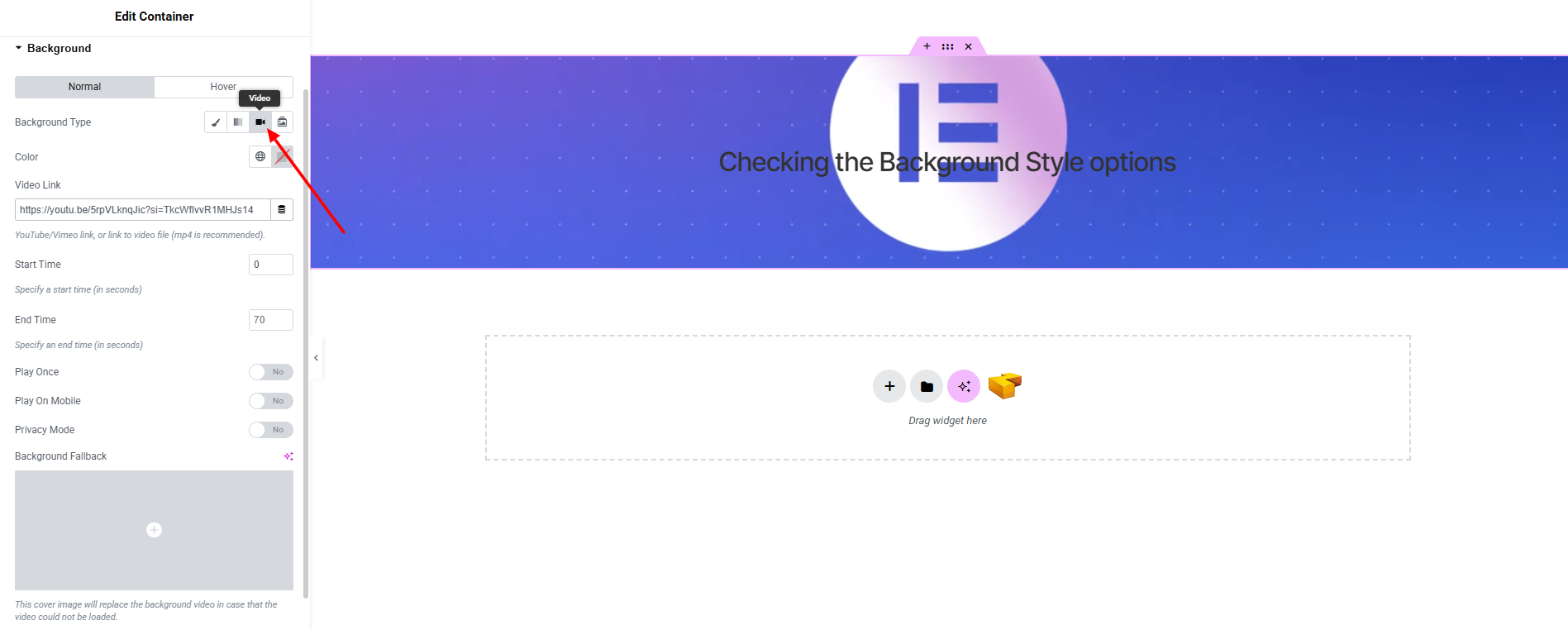
- Video Link : Add the URL of the background video.
- Start Time : Define the starting point of the video.
- End Time : Define the ending point of the video.
- Play Once (Toggle) : Play the video only once or loop continuously.
- Play On Mobile (Toggle) : Enable or disable video playback on mobile devices.
- Privacy Mode (Toggle) : Enable privacy mode for embedded videos.
- Background Fallback : Set a fallback image in case the video cannot play.
Slideshow Background
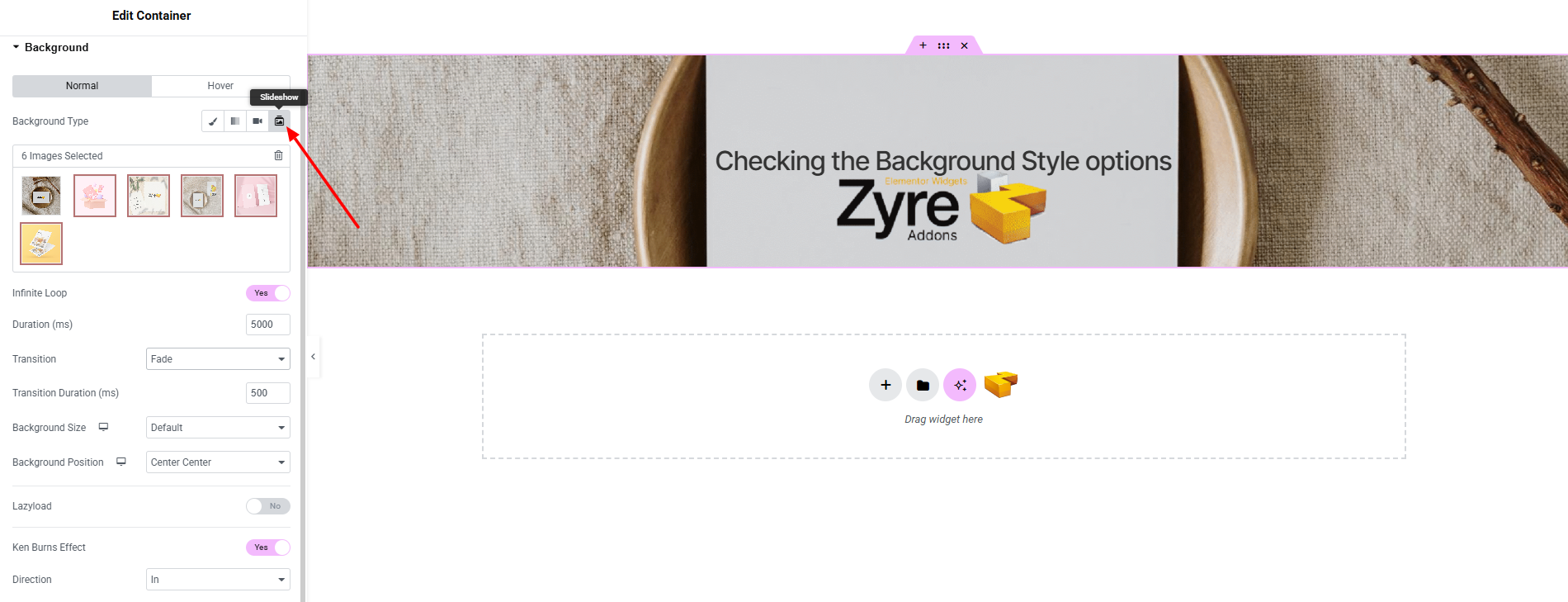
- Images Selection : Choose the images for the slideshow.
- Infinite Loop (Toggle) : Enable continuous looping of slideshow images.
- Duration (ms) : Set how long each slide displays.
- Transition : Select the type of transition between slides.
- Transition Duration (ms) : Set the speed of the transition effect.
- Background Size : Adjust how each slide image fills the container.
- Background Position : Set the alignment of slideshow images.
- Lazyload (Toggle) : Enable lazy loading for better performance.
- Ken Burns Effect (Toggle) : Apply a subtle pan and zoom effect on slides.
- Direction : Set the ken burns effect movement direction (In/Out).
Image Overlay
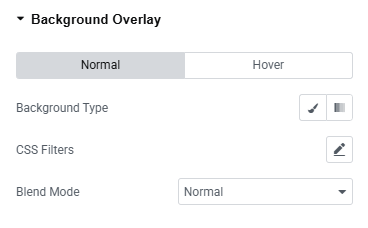
- Background Type : Choose the overlay style, such as solid color or gradient.
- CSS Filters : Apply visual effects like brightness, contrast, or blur to the overlay.
- Blend Mode : Set how the overlay blends with the underlying image.
