

Countdown
Step-by-Step Tutorial on Using the Countdown Widget of Zyre Addon
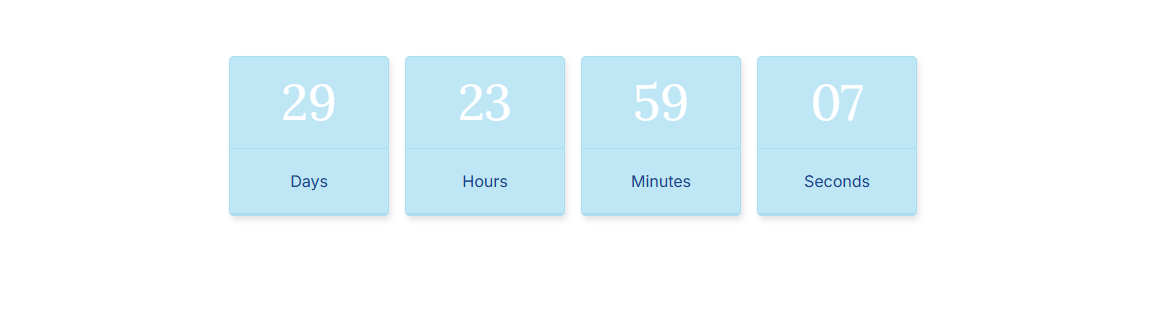
Zyre Addon’s Countdown Widget brings a sleek and stylish touch to your Elementor designs. Add creative effects and unique styles to make your webpage stand out with polished, eye-catching headings.
Learn How To Use Countdown Widget:
Exploring the Features of Countdown Widget
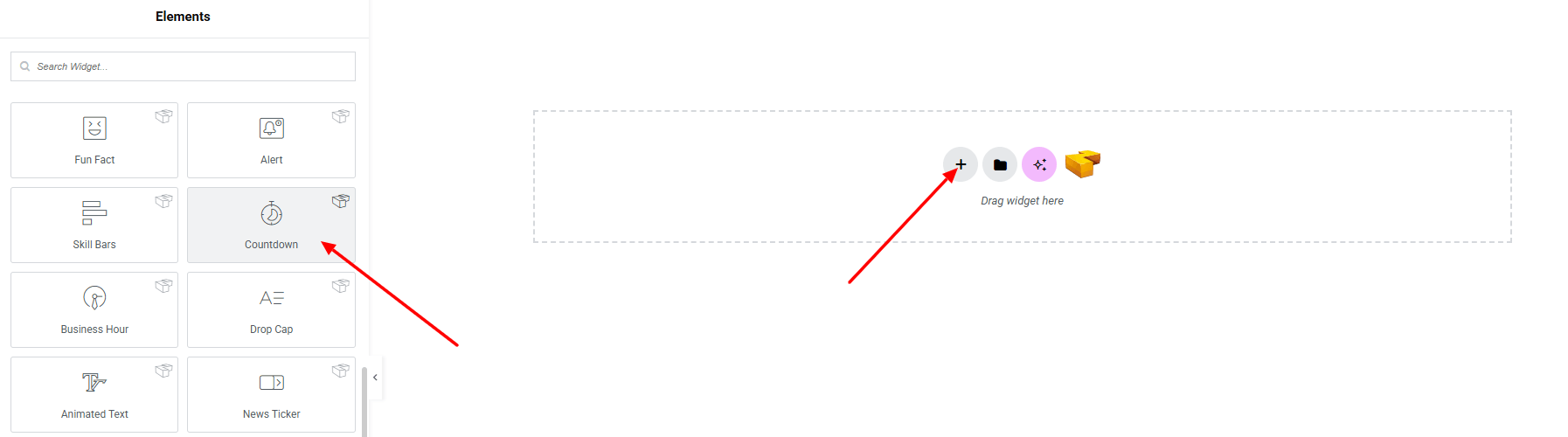
Step 1: Drag the widget
From the left panel, search or choose the Countdown Widget of Zyre Addon and simply drag it into your desired section.
Step 2: Content tab
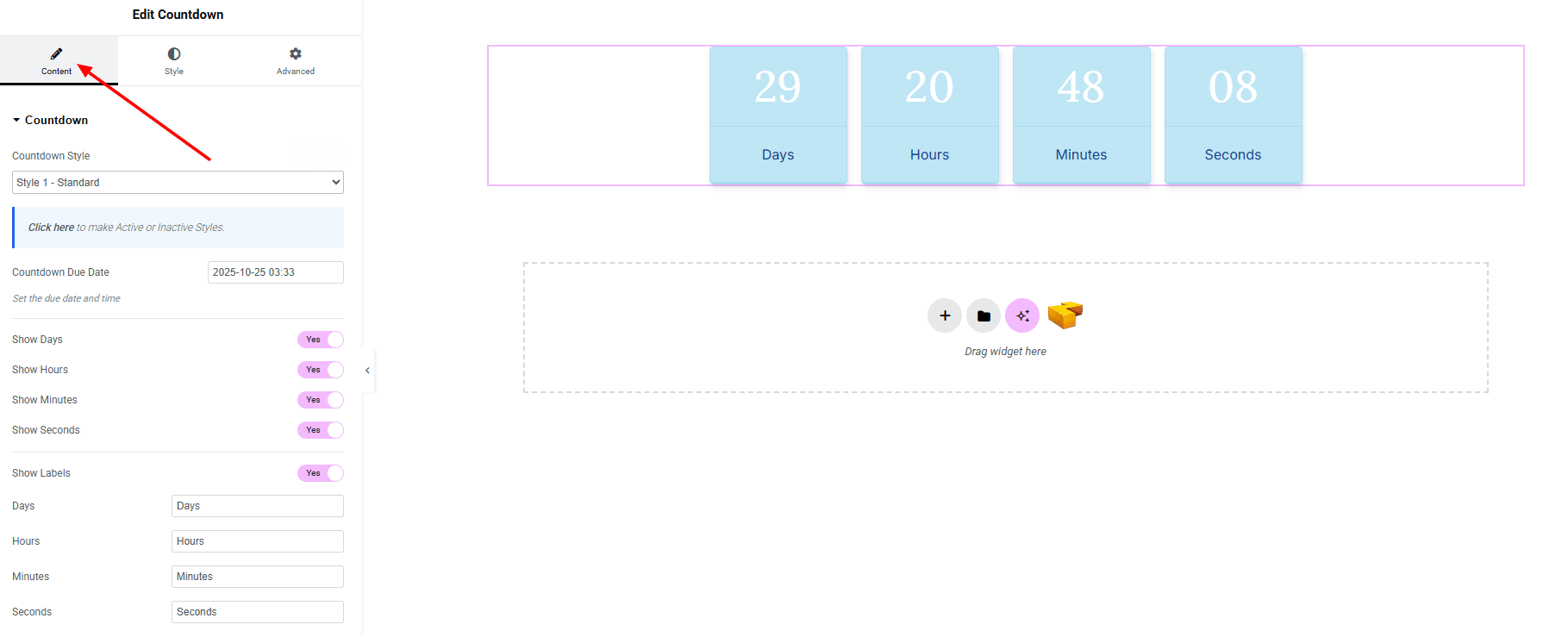
Countdown:
- Countdown Style : Currently only one style is available.
- Countdown Due Date : Set the due date and time for the countdown.
- Show Days : Enable/disable displaying days.
- Show Hours : Enable/disable displaying hours.
- Show Minutes : Enable/disable displaying minutes.
- Show Seconds : Enable/disable displaying seconds.
- Show Labels Toggle : Enable/disable labels for time units.
- Days : Customize label text for Days
- Hours : Customize label text for Hours
- Minutes : Customize label text for Minutes
- Seconds : Customize label text for Seconds
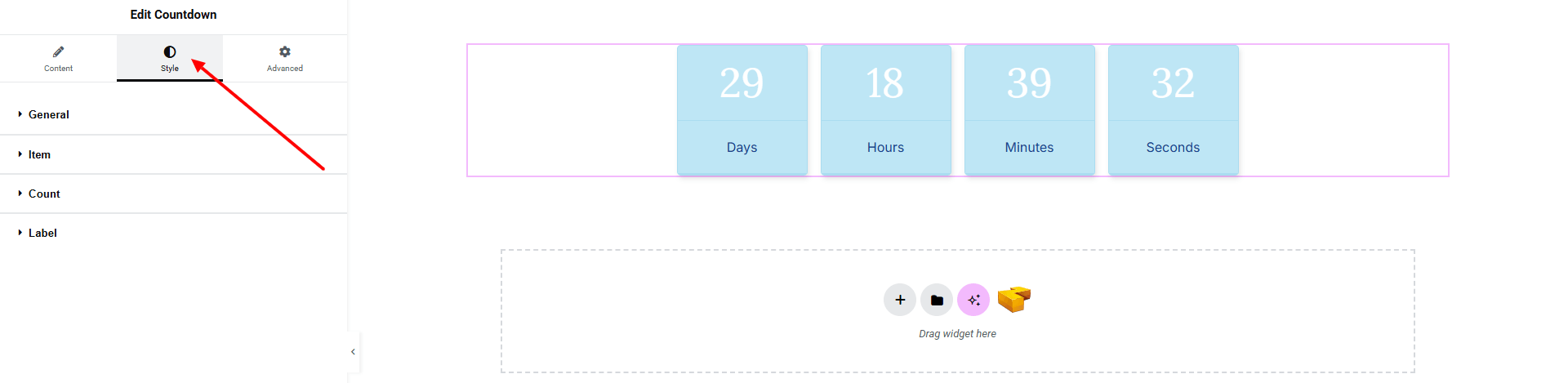
Step 3: Style tab
In the Style section, you can customize the General, Item, Count, Label — but make sure you have added the contents first.
General:
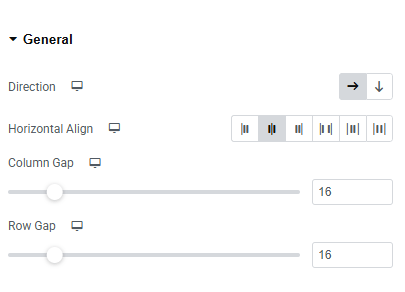
- Direction : Choose layout direction (row or column).
- Horizontal Align : Align countdown items (left, center, right).
- Column Gap : Adjust spacing between columns.
- Row Gap : Adjust spacing between rows.
Item:
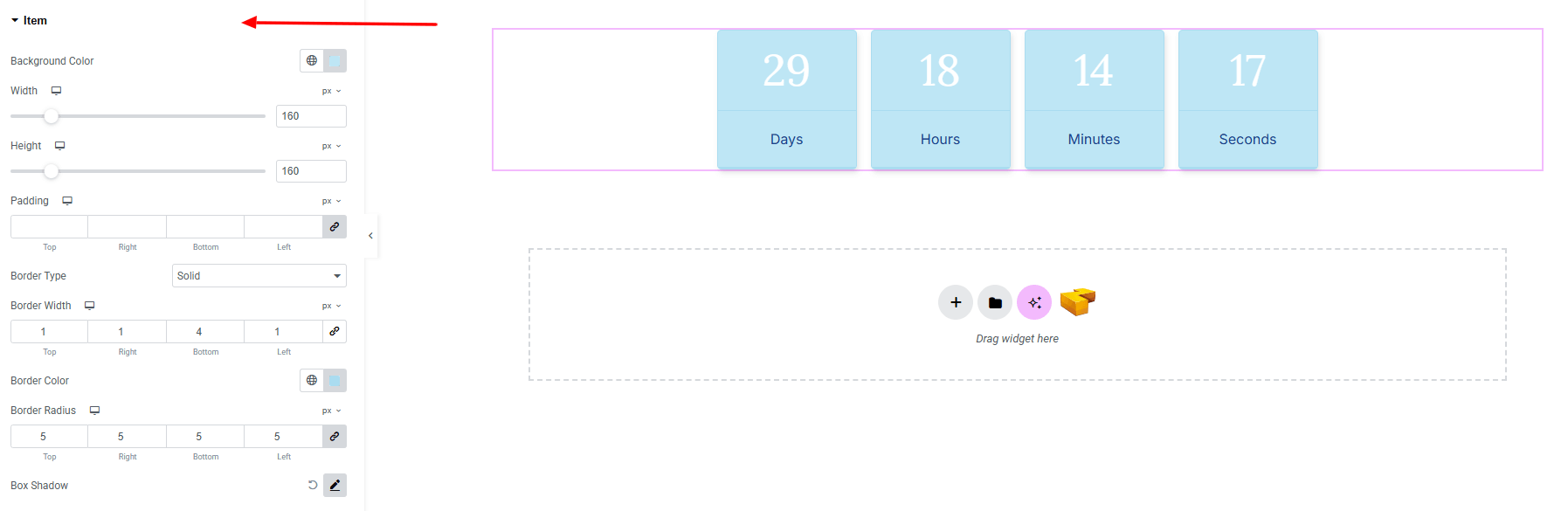
- Background Color : Set the background color for each countdown item. Explore full background settings here.
- Width : Control the item’s width.
- Height : Define the height of the item.
- Padding : Control inner spacing around the content area.
- Border Type : Customize border style, width, and color.
- Border Radius : Control corner roundness.
- Box Shadow : Add drop shadow effects.
Count:
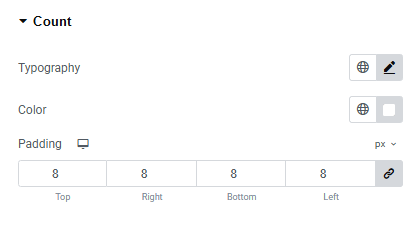
- Typography : Adjust font family, size, weight, transform, style, decoration, line height, letter spacing, and word spacing. Explore full typography settings here.
- Color : Choose the color of the number.
- Padding : Control inner spacing around the count area.
Label:
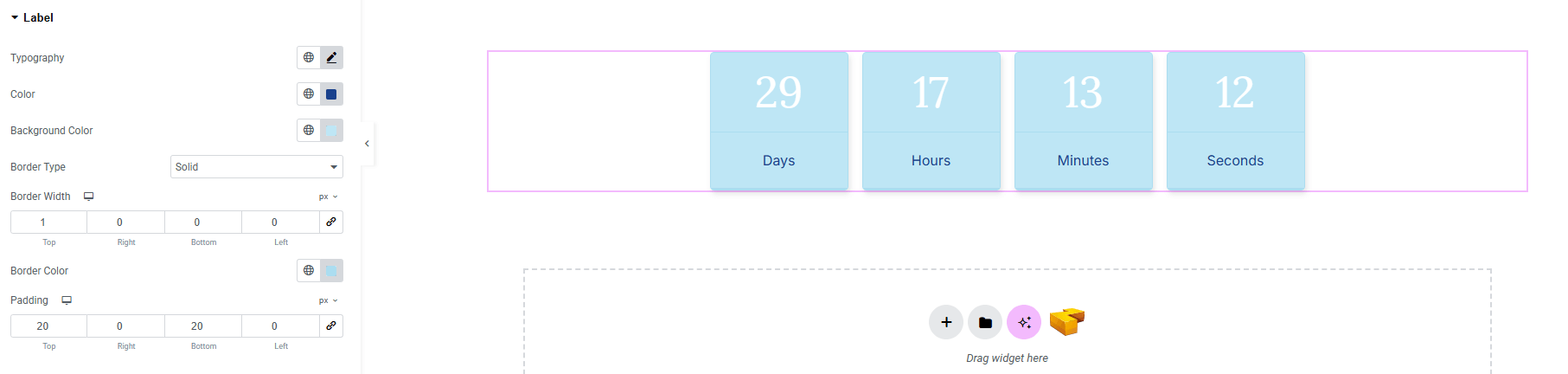
- Typography : Adjust font family, size, weight, transform, style, decoration, line height, letter spacing, and word spacing. Explore full typography settings here.
- Color : Set color of the title.
- Background Color : Set the background for each countdown item. Explore full background settings here.
- Border Type : Customize border style, width and color.
- Padding : Control inner spacing around the label area.
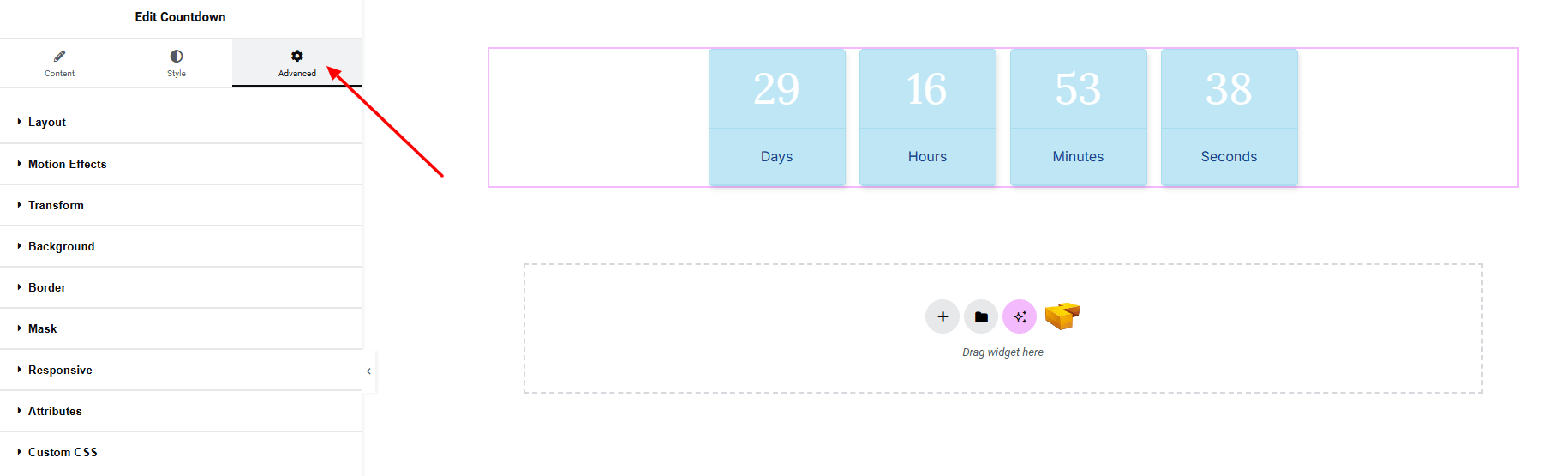
Step 4: Advance tab
If you want to customize the layout, backgrounds, or make your design more engaging, head over to the Advanced section. The Advanced panel is a default Elementor feature. Check out this document to learn more about its features.
Finally, hit the Publish button and watch your stunning Countdown come to life on your webpage!
You’re fully set up!
