

Widgets
Divider
Step-by-Step Tutorial on Using the Divider Widget of Zyre Addon
With Zyre Addon’s Divider Widget, you can add stylish separators to your layout. Customize line styles, thickness, colors, icons, and spacing to create clear visual breaks that enhance readability and design flow.
Learn How To Use Divider Widget:
Exploring the Features of Divider Widget
Step 1: Drag the widget
From the left panel, search or choose the Divider Widget of Zyre Addon and simply drag it into your desired section.
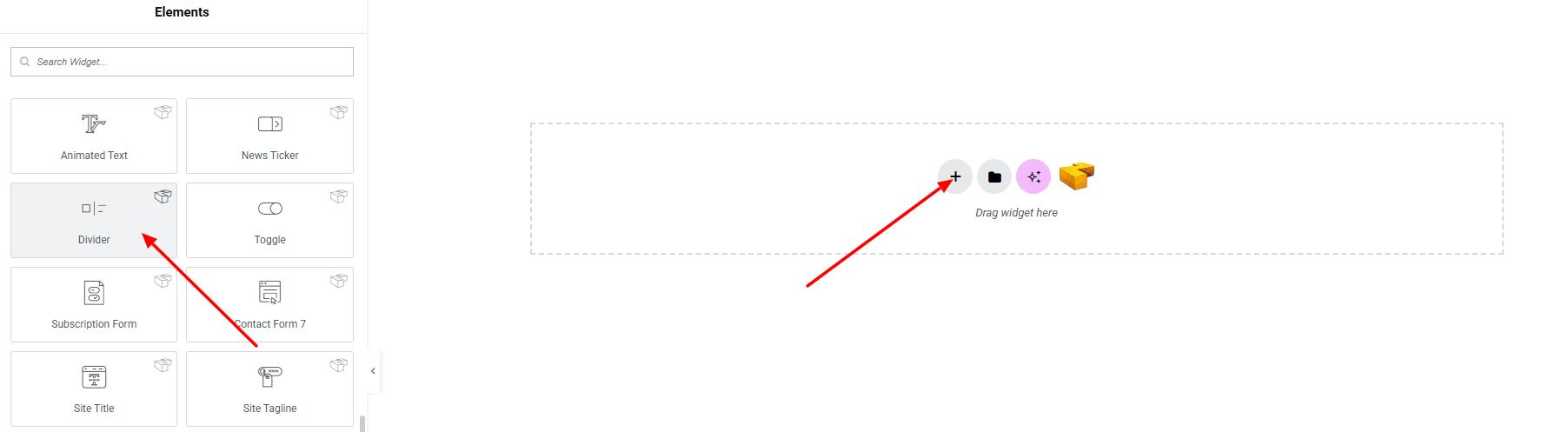
Step 2: Content tab
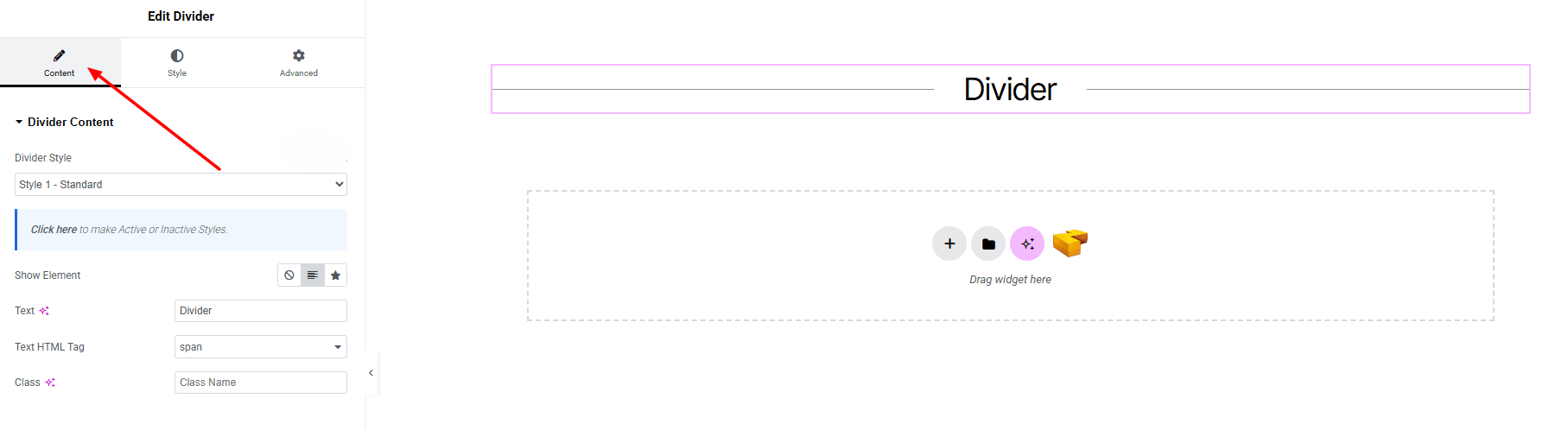
Divider Content:
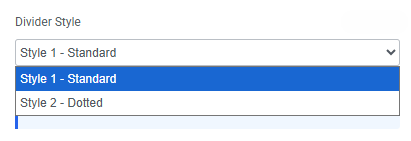
- Divider Style : You can choose a predefined style from here
- Show Element : Choose what to display on the divider (None, Text, or Icon).
- Text : Add custom text to appear within the divider.
- Text HTML Tag : Select the HTML tag for the divider text.
- Class : Assign a custom CSS class.
Step 3: Style tab
In the Style section, you can customize the Divider and Divider Text.
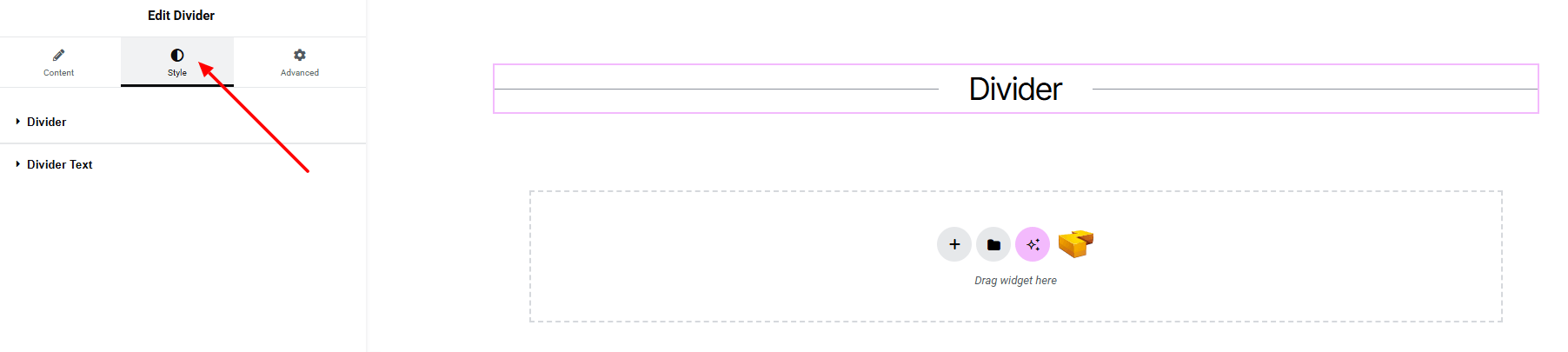
Divider:
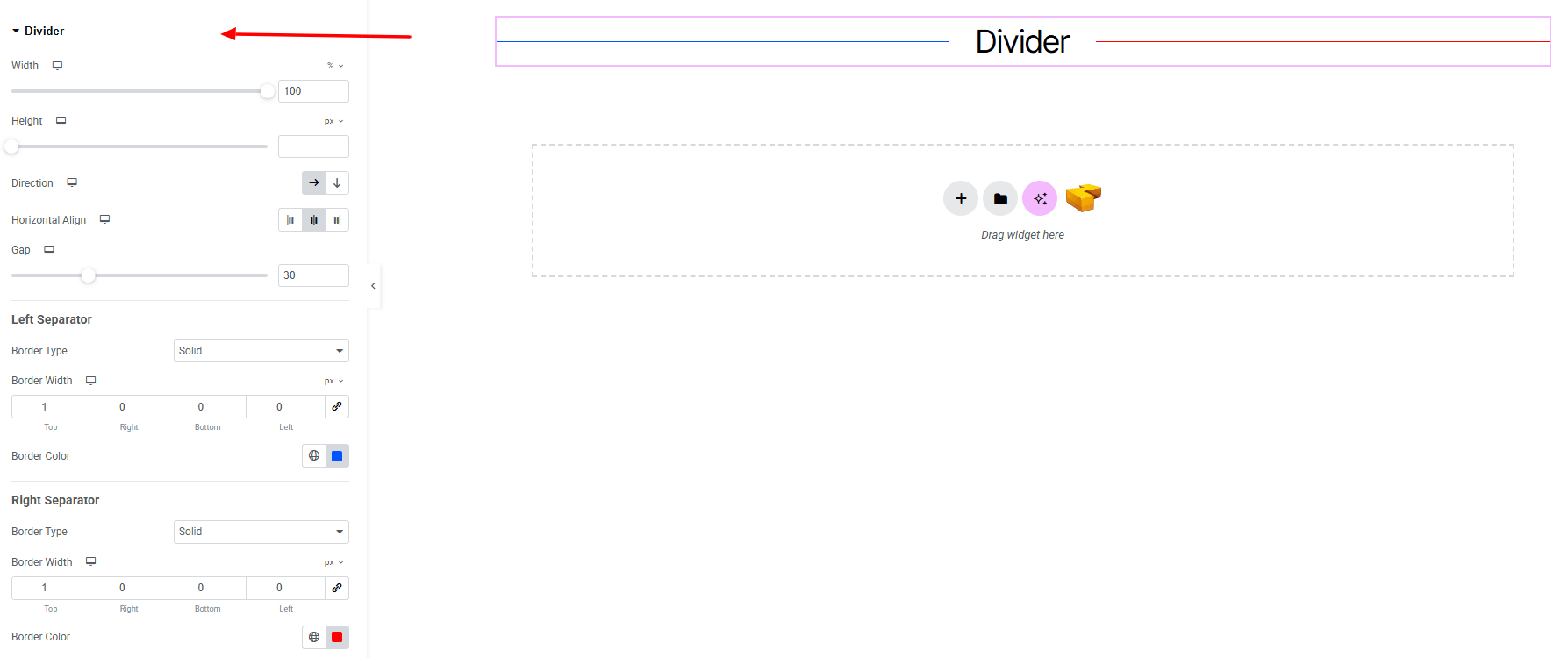
- Width : Set the overall width of the divider.
- Height : Define the height of the divider line.
- Direction : Choose the divider orientation (horizontal or vertical).
- Horizontal Align : Align the divider (left, center, right).
- Gap : Adjust the spacing around the divider.
- Left Separator:
- Border Type : Choose the border style for the left section.
- Border Width : Set the thickness of the left border.
- Border Color : Customize the color of the left border.
- Right Separator:
- Border Type : Choose the border style for the right section.
- Border Width : Set the thickness of the right border.
- Border Color : Customize the color of the right border.
Divider Text:
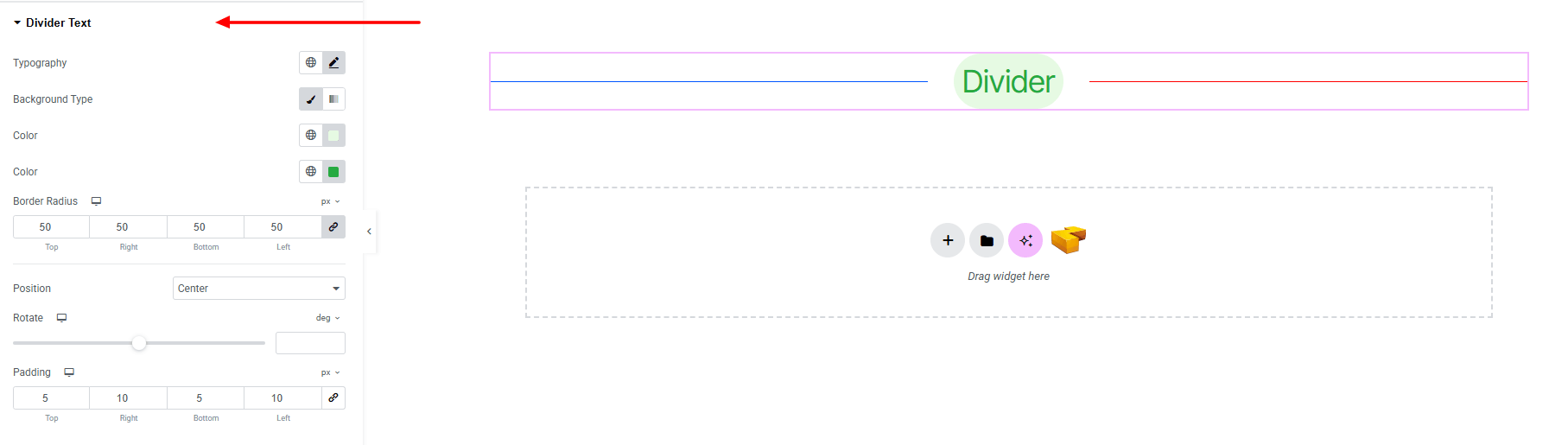
- Typography: Here you can customize the font family, size, weight, transform, style, decoration, line height, letter spacing, and word spacing for your text. Explore full typography settings here.
- Background Type : Choose background type with classic or gradient color. Explore full background settings here.
- Color : Set the divider text color.
- Border Radius : Control corner roundness.
- Position : Set the position of the divider text.
- Rotate : Adjust the rotation angle of the divider text.
- Padding : Adjust inner spacing around the divider text.
Step 4: Advance tab
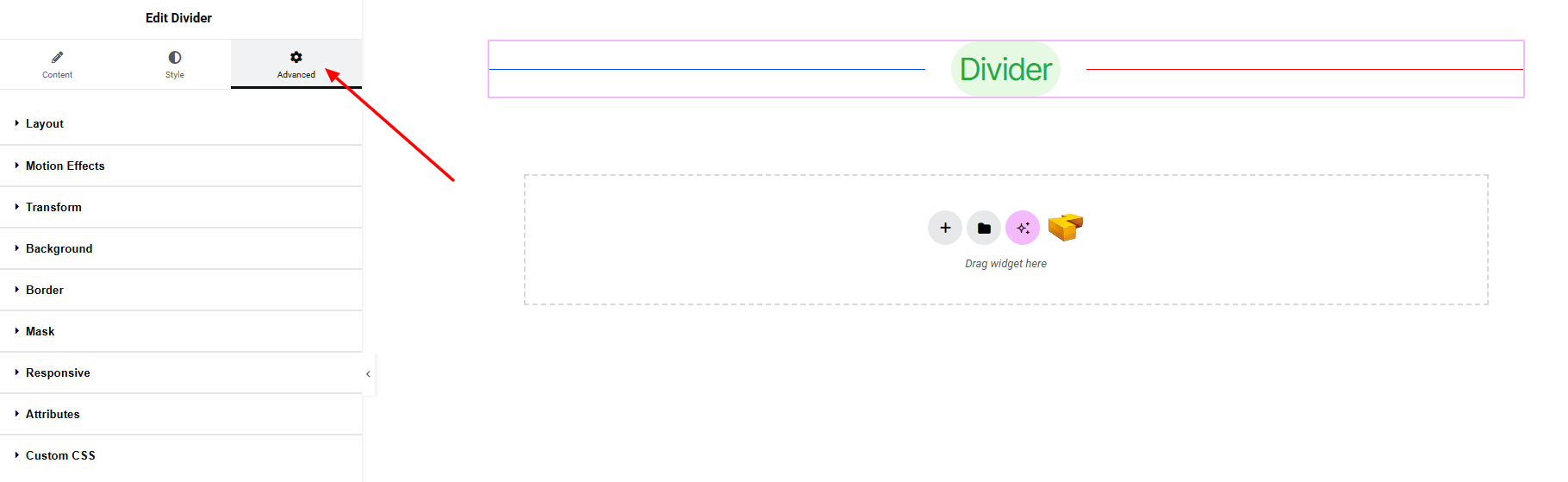
If you want to customize the layout, backgrounds, or make your design more engaging, head over to the Advanced section. The Advanced panel is a default Elementor feature. Check out this document to learn more about its features.
Finally, hit the Publish button and watch your stunning Divider come to life on your webpage!

You’re all set!
