

Post Meta
Step-by-Step Tutorial on Using the Post Meta Widget of Zyre Addon
The Post Meta Widget of Zyre Addon combines functionality with style, ensuring your website is both informative and visually captivating. With sleek layouts, unique effects, and complete customization, it transforms simple lists into impactful design elements.
Learn How To Use Post Meta Widget:
Exploring the Features of Post Meta Widget
Step 1: Drag the widget
From the left panel, search or choose the Post Meta of Zyre Addon and simply drag it into your desired section.
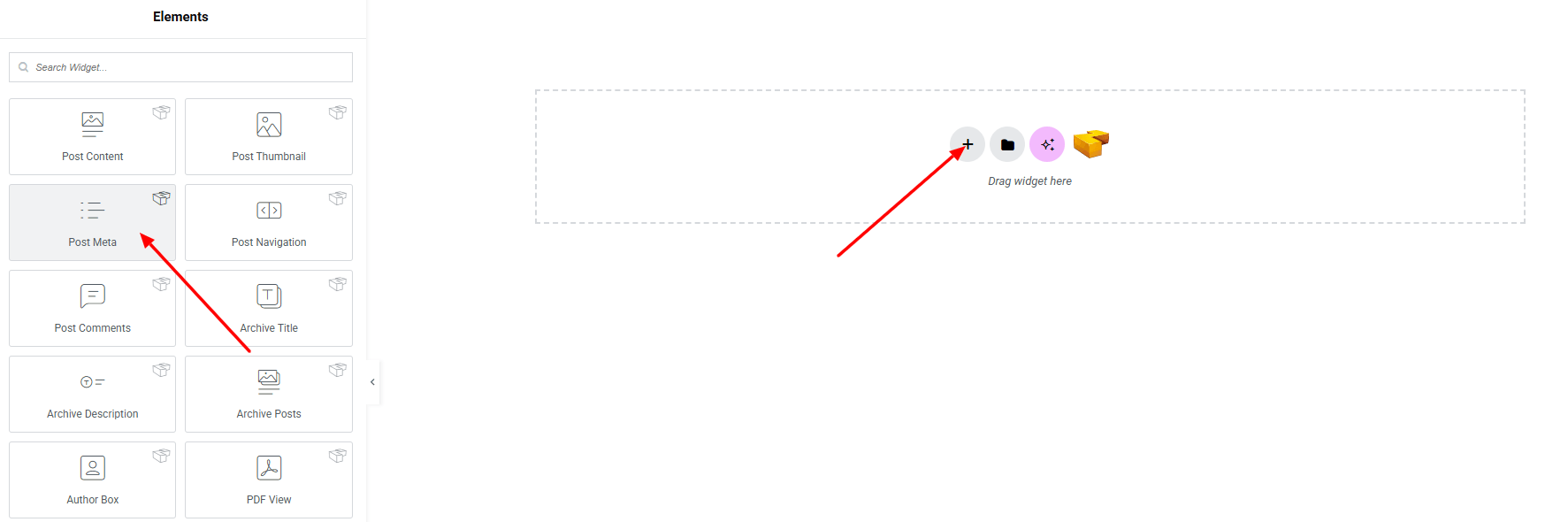
Step 2: Content tab
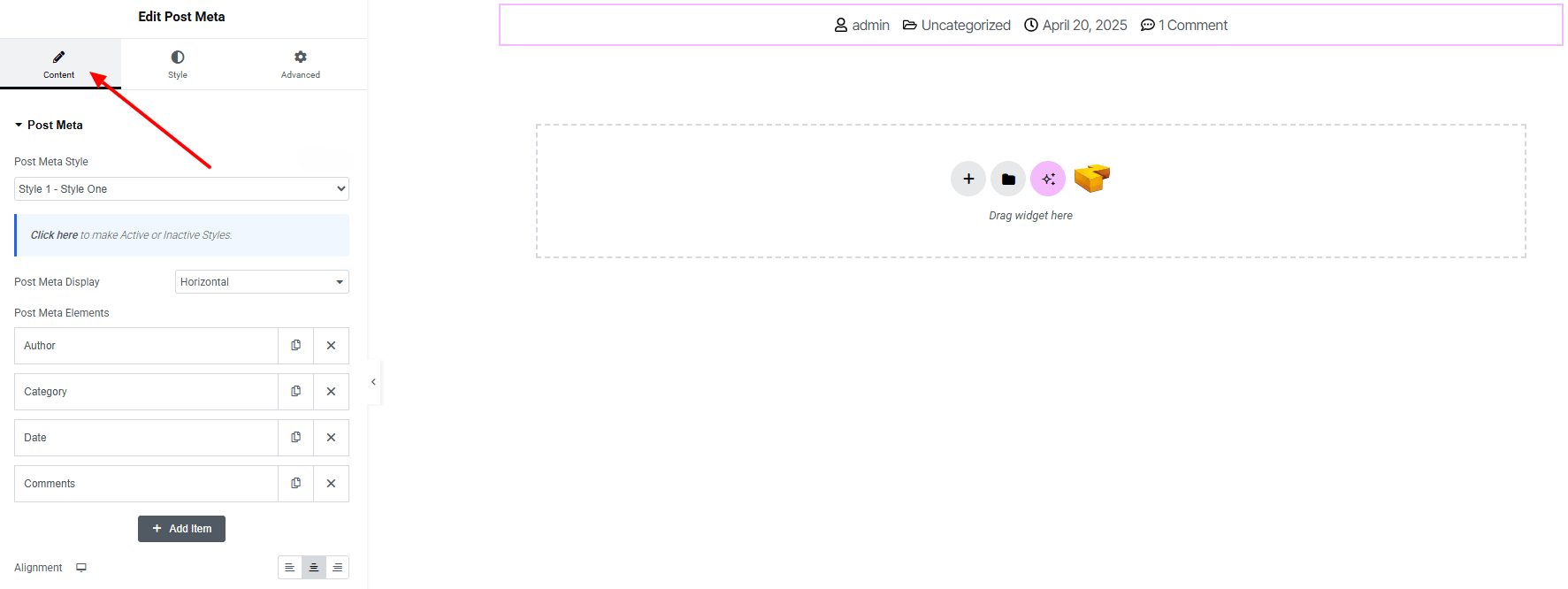
Post Meta:
- Post Meta Style : Currently, only one style is available.
- Post Meta Display : Choose how the meta information shown (Horizontal/ Vertical)
- Post Meta Elements : Select which meta elements to show
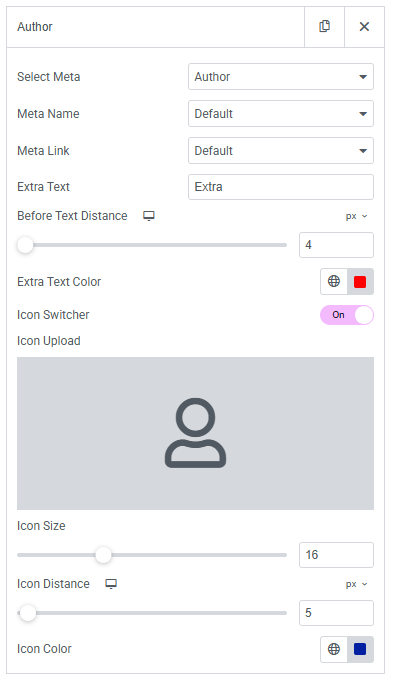
- Select Meta : Choose which post meta element to display (e.g., author, date, categories, comments).
- Meta Name : Define a custom label/name for the meta element.
- Meta Link : Setting link to the meta element.
- Extra Text : Add additional text before the meta element for context.
- Before Text Distance : Adjust spacing between the extra text and the meta element.
- Extra Text Color : Set the color of the extra text.
- Icon Switcher : Toggle to enable or disable an icon with the meta element.
- Icon Upload : Upload an icon from the icon library.
- Icon Size : Set the size of the icon.
- Icon Distance : Control the spacing between the icon and the meta element text.
- Alignment : Control the alignment of the meta information
Step 3: Style tab
In the Style section, you can customize the General, Meta item, Meta Link, Divider — but make sure you have added them first.

General:
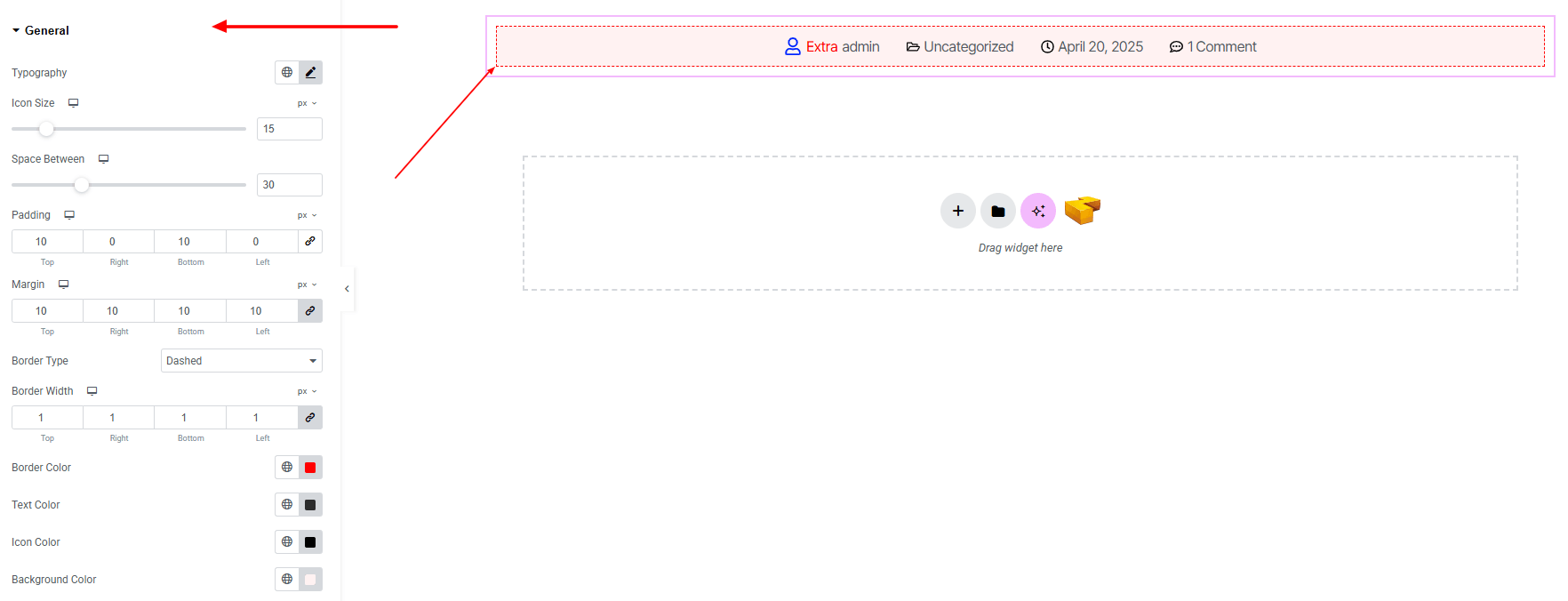
- Typography : Adjust font family, size, weight, transform, style, decoration, line height, letter spacing, and word spacing. Explore full typography settings here.
- Icon Size : Set the icon size.
- Space Between : Adjust spacing between each item.
- Padding : Add inner spacing.
- Margin : Add outer spacing.
- Border Type : Define border style, width, and color.
- Text Color : Set the text color.
- Icon Color : Set the icon color.
- Background Color : Set background color. Explore full background settings here.
Meta Item:

- Padding : Add inner spacing to balance text and visuals.
Meta Link:

- Text Color : Set the text color of the link for both normal and hover state.
Divider:

- Divider : Toggle to enable or disable an icon with the meta element.
- Style : Choose divider style.
- Weight : Set weight of the divider.
- Height : Set height of the divider.
- Color : Set color of the divider.
Step 4: Advance tab
If you want to customize the layout, backgrounds, or make your design more engaging, head over to the Advanced section. The Advanced panel is a default Elementor feature. Check out this document to learn more about its features.
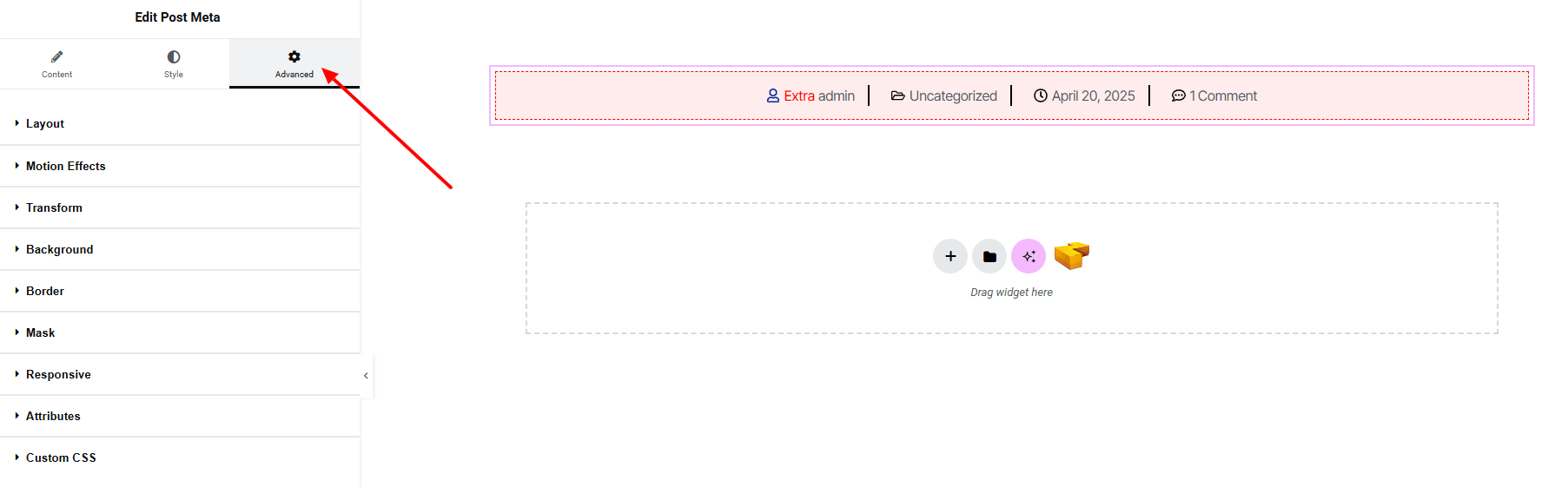
Finally, hit the Publish button and watch your stunning Post Meta come to life on your webpage!

Everything’s in place now!
