

Mega Menu
Step-by-Step Tutorial on Using the Mega Menu Widget of Zyre Addon
Mega Menu allows you to create advanced, fully customizable navigation menus using Elementor. Instead of using simple dropdowns, you can design rich layouts with multiple columns, images, widgets, and dynamic content—giving your website a modern and scalable navigation experience.
Learn How To Use Mega Menu Widget:
Exploring the Features of Mega Menu Widget
Step 1: Open Menu Settings
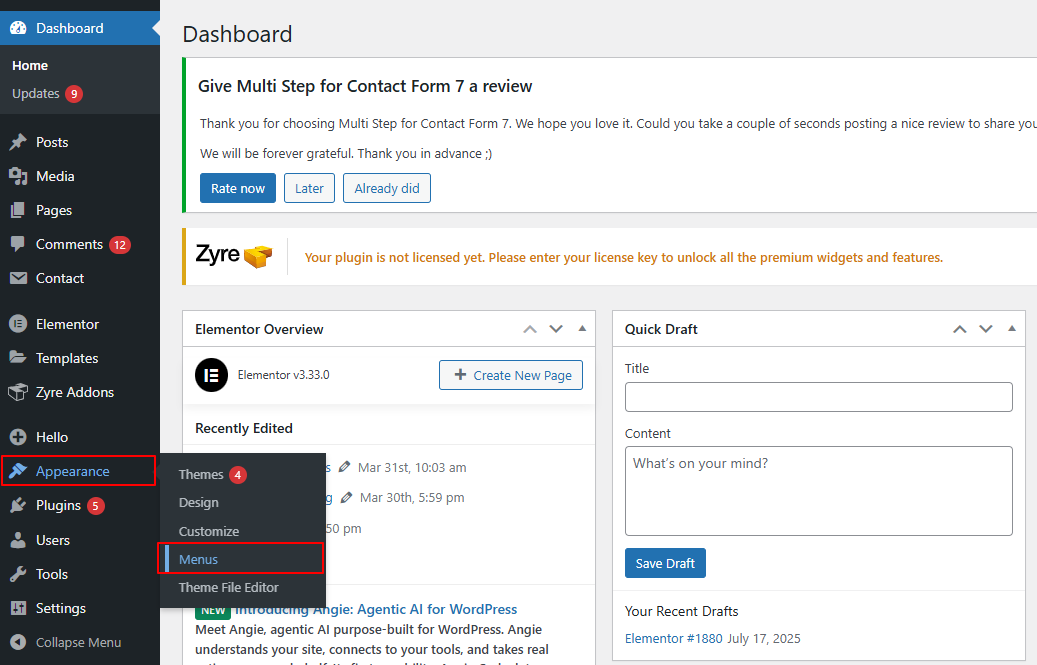
Log in to your WordPress admin panel and navigate to:
Dashboard → Appearance → Menus
This will open the default WordPress menu builder where you can manage your navigation menus.
Step 2: Enable Zyre Mega Menu
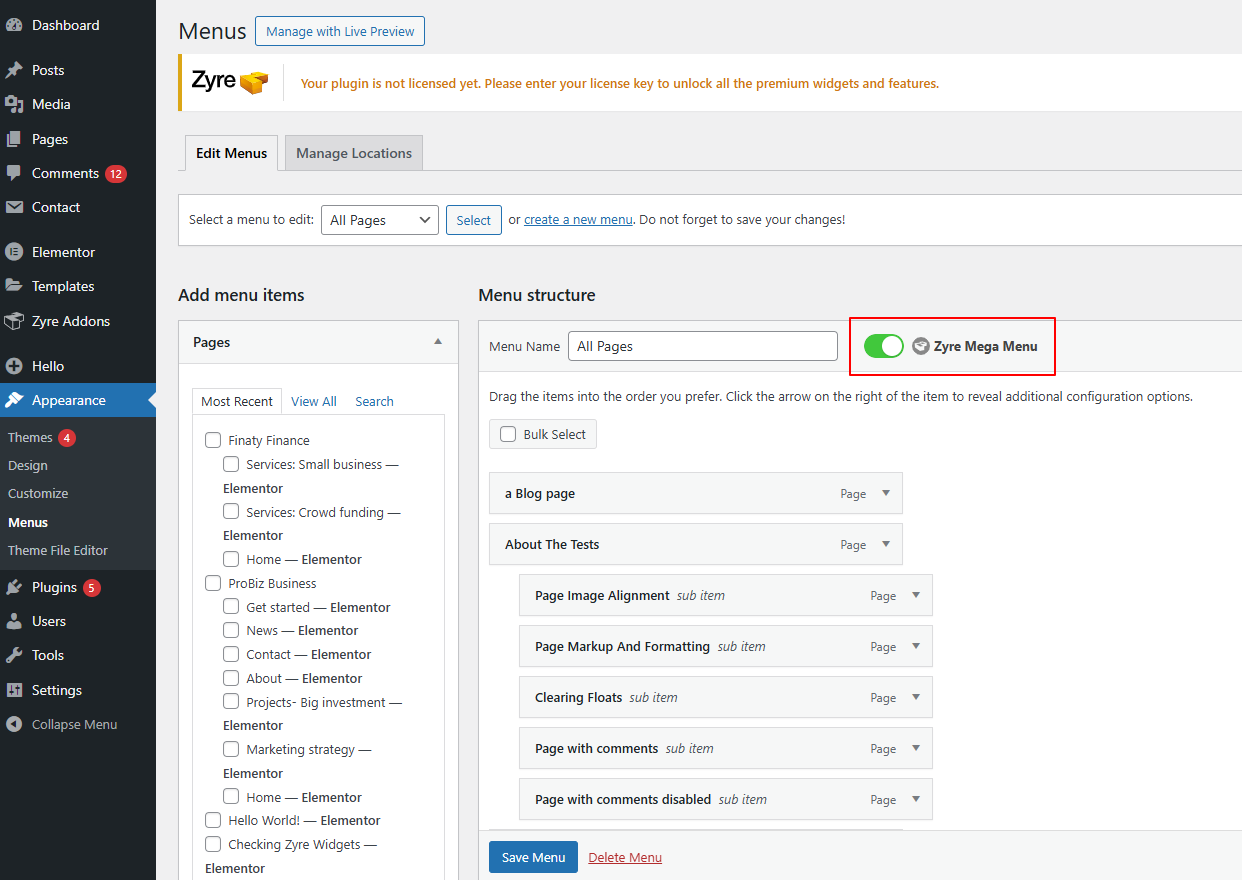
Select or create a menu (e.g., All Pages).
On the right side, you will see the Zyre Mega Menu toggle.
Enable this option to activate mega menu functionality for the selected menu.
Step 3: Enable Mega Menu for a Menu Item
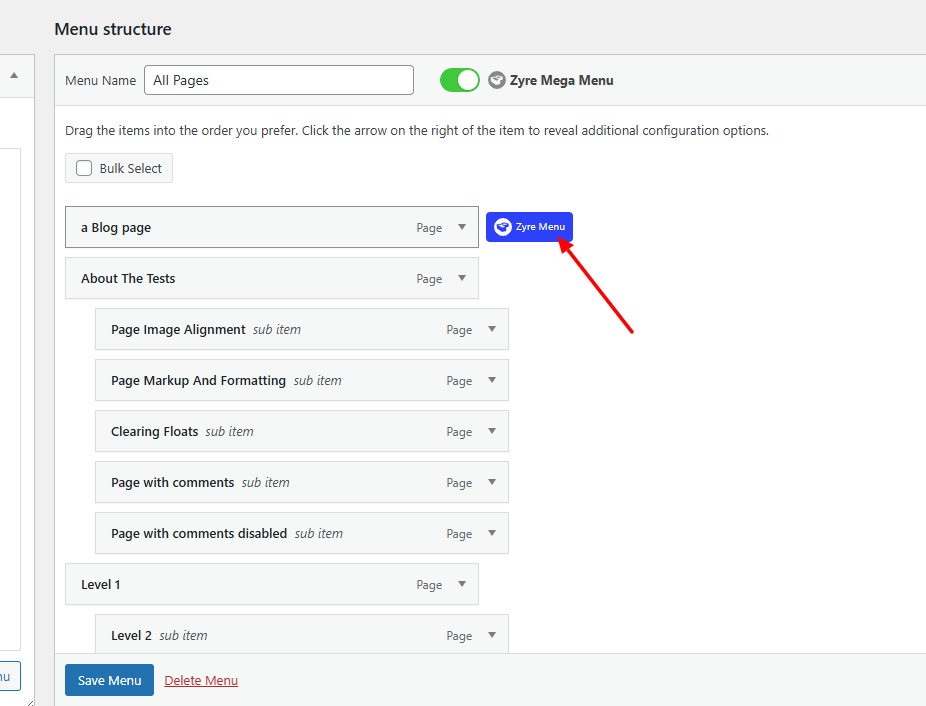
Inside the Menu Structure, choose the menu item where you want to apply the mega menu.
Hovering on parent menu items Zyre Menu button will be shown next to the item. Then Click on the Zyre Menu button.
This opens the Mega Menu settings panel for that specific menu item.
Configure Mega Menu Settings:
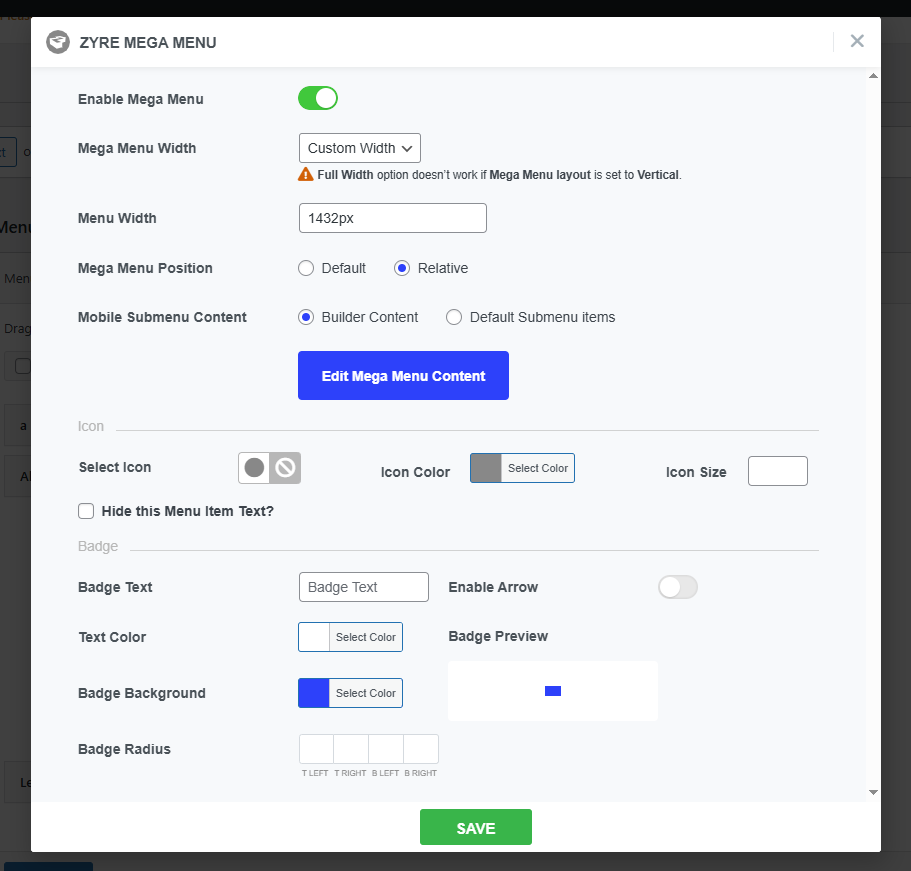
Inside the Mega Menu popup:
- Enable Mega Menu toggle
- Set Mega Menu Width (e.g., Custom Width or Full Width)
- Define Menu Width (example: 1432px)
- Choose Mega Menu Position (Default or Relative)
- Select Mobile Submenu Content:
- Builder Content
- Default Submenu Items
- Customize the menu item icon:
- Select Icon – Choose an icon for the menu item
- Icon Color, Size – Set the icon color and size
- Hide this Menu Item Text? – Option to hide the menu label and show only the icon
- Add and style a badge for the menu item:
- Badge Text, Color – Enter badge label and text color (e.g., New, Hot)
- Badge Background – Choose background color.
- Badge Radius – Adjust corner radius.
Finally Click Save button inside the Mega Menu popup. These settings control how your mega menu behaves and appears across devices. Now click on Edit Mega Menu Content.
This will open the Elementor editor where you can design your mega menu layout using Zyre widgets and Elementor elements.
Step 4: Design Mega Menu Content
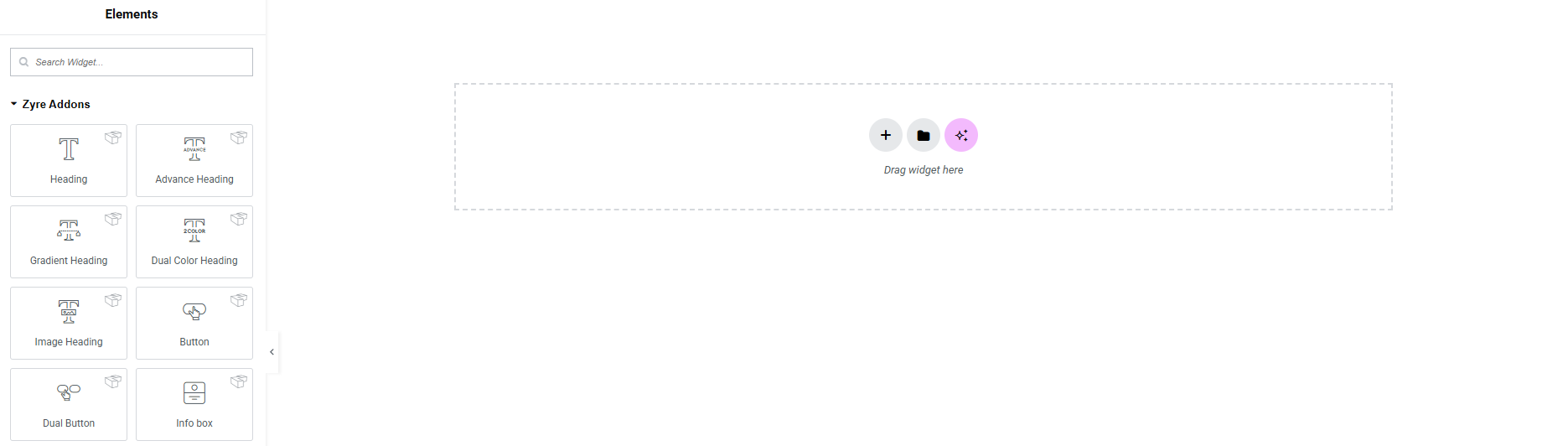
Now you have full flexibility to build the mega menu exactly according to your preferences—structure, styling, and content can be customized without limitations. Design it exactly how you want your dropdown to look.
You can add:
- Columns and sections
- Images and icons
- Text blocks
- Buttons
- Dynamic widgets
Design it exactly how you want your dropdown to look.
Step 5: Publish Mega Menu Settings
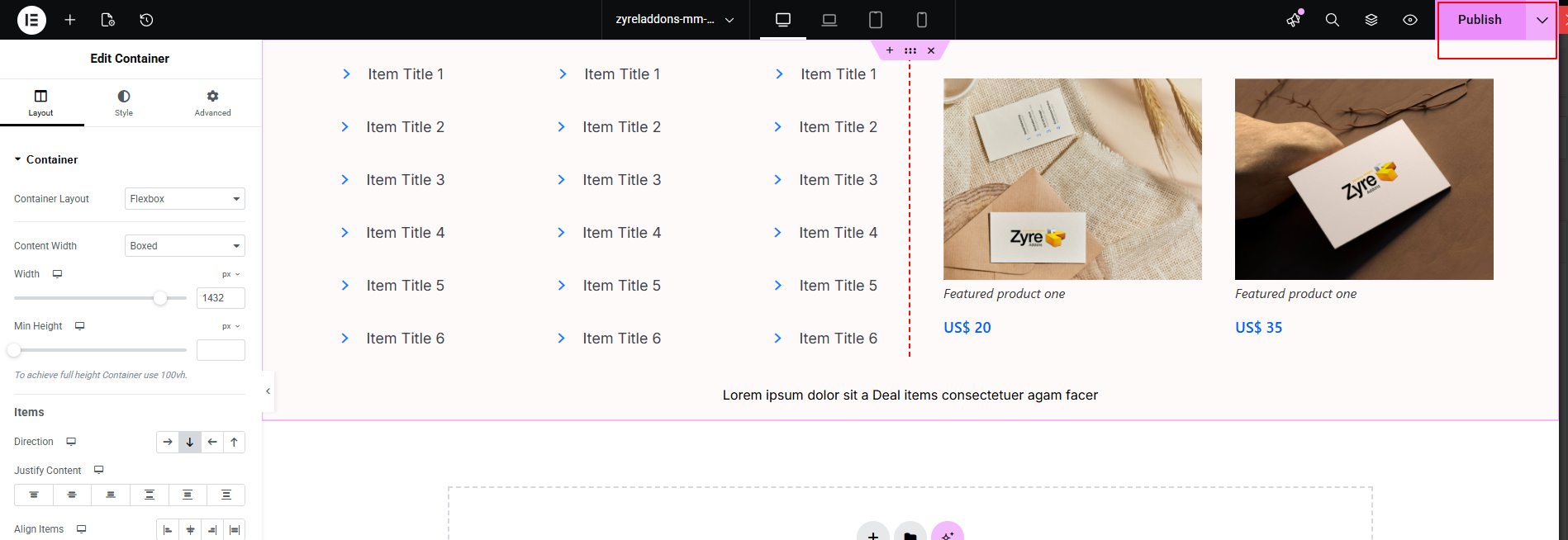
After configuring and designing your mega menu, Click on the Publish Button. Your Mega Menu setup is now complete.
Step 6: Add Mega Menu Widget in Elementor
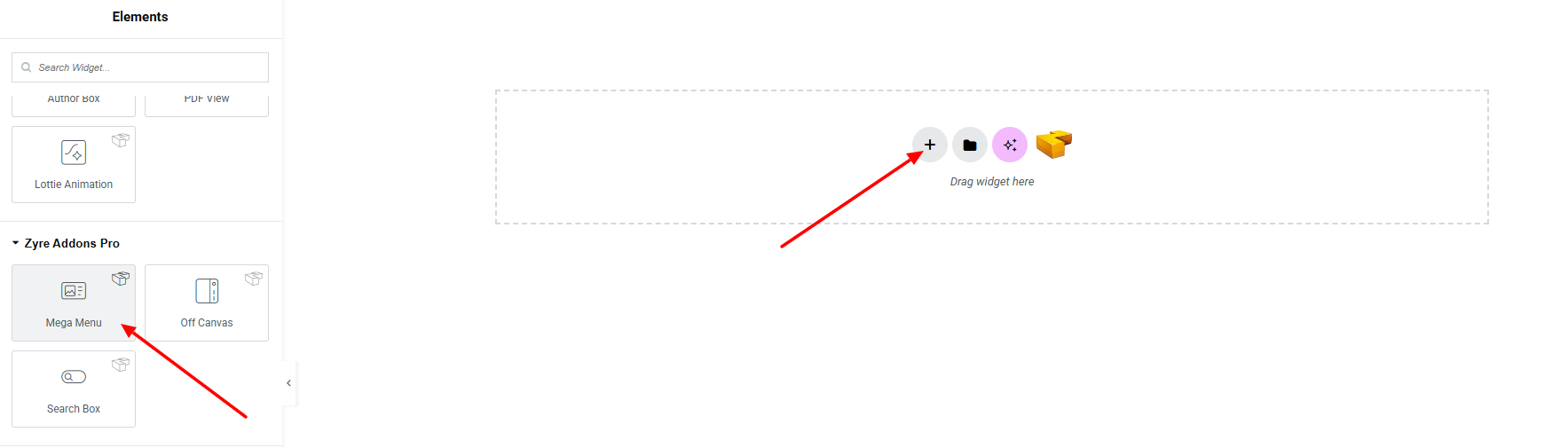
Now In the Elementor panel where you want to add mega menu:
- Search for Mega Menu widget
- Drag and drop the widget into your header or desired section
From the widget settings:
- Select your created menu from the Select Menu dropdown
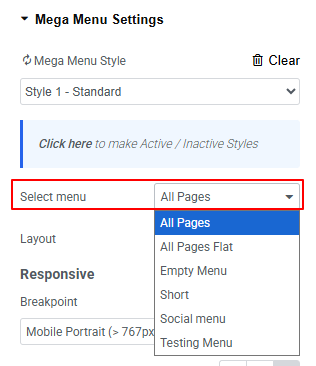
Now, when you hover over the specific menu item where Mega Menu is enabled, your custom-designed mega menu will appear.
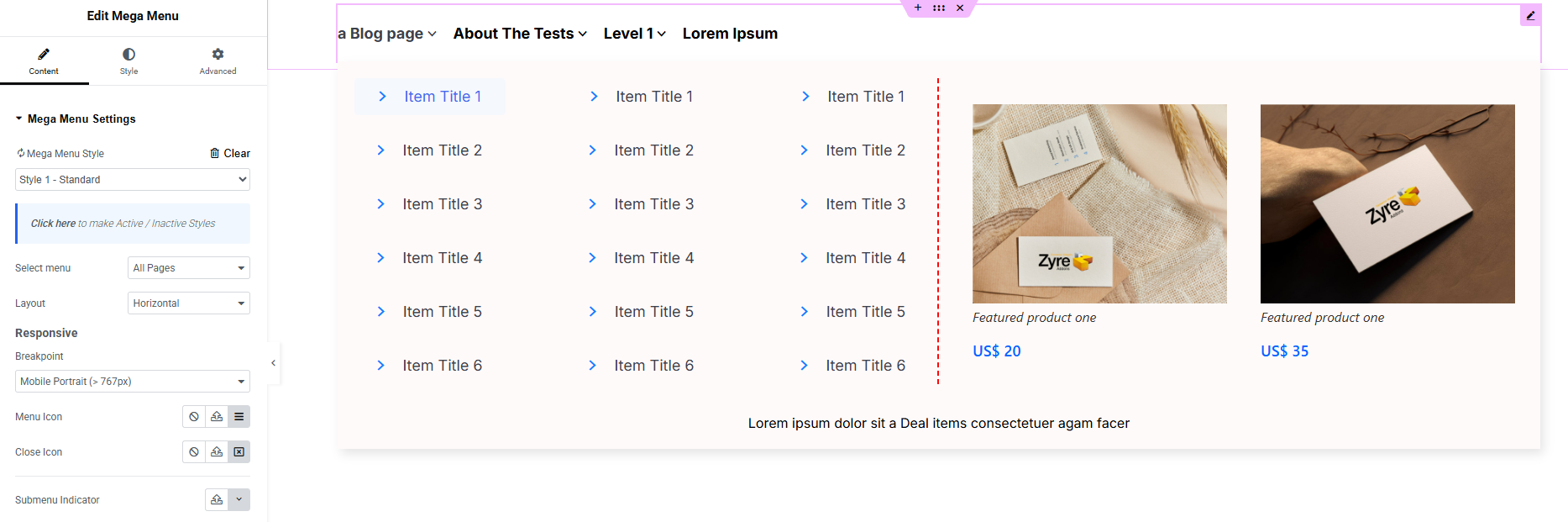
Finally, hit the Publish button and watch your stunning Mega Menu come to life on your webpage!
Everything’s good to go!
⚠️ Note: If your theme or another plugin provides its own mega menu or advanced navigation system, it may conflict with Zyre Mega Menu. To avoid layout issues or broken menus, disable any other mega menu functionality before using Zyre’s Mega Menu.
