

Logo Grid
Step-by-Step Tutorial on Using the Logo Grid Widget of Zyre Addon
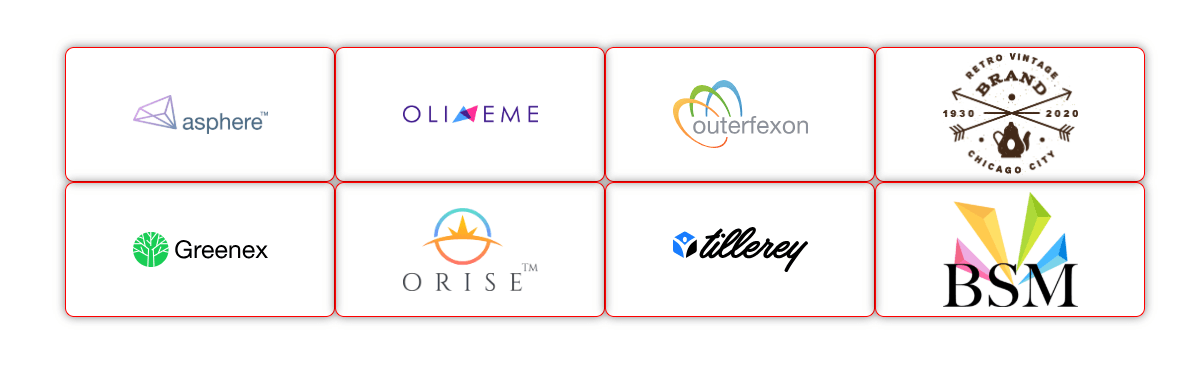
The Logo Grid Widget of Zyre Addon combines functionality with style, ensuring your website is both informative and visually captivating. With sleek layouts, unique effects, and complete customization, it transforms simple lists into impactful design elements.
Learn How To Use Logo Grid Widget:
Exploring the Features of Logo Grid Widget
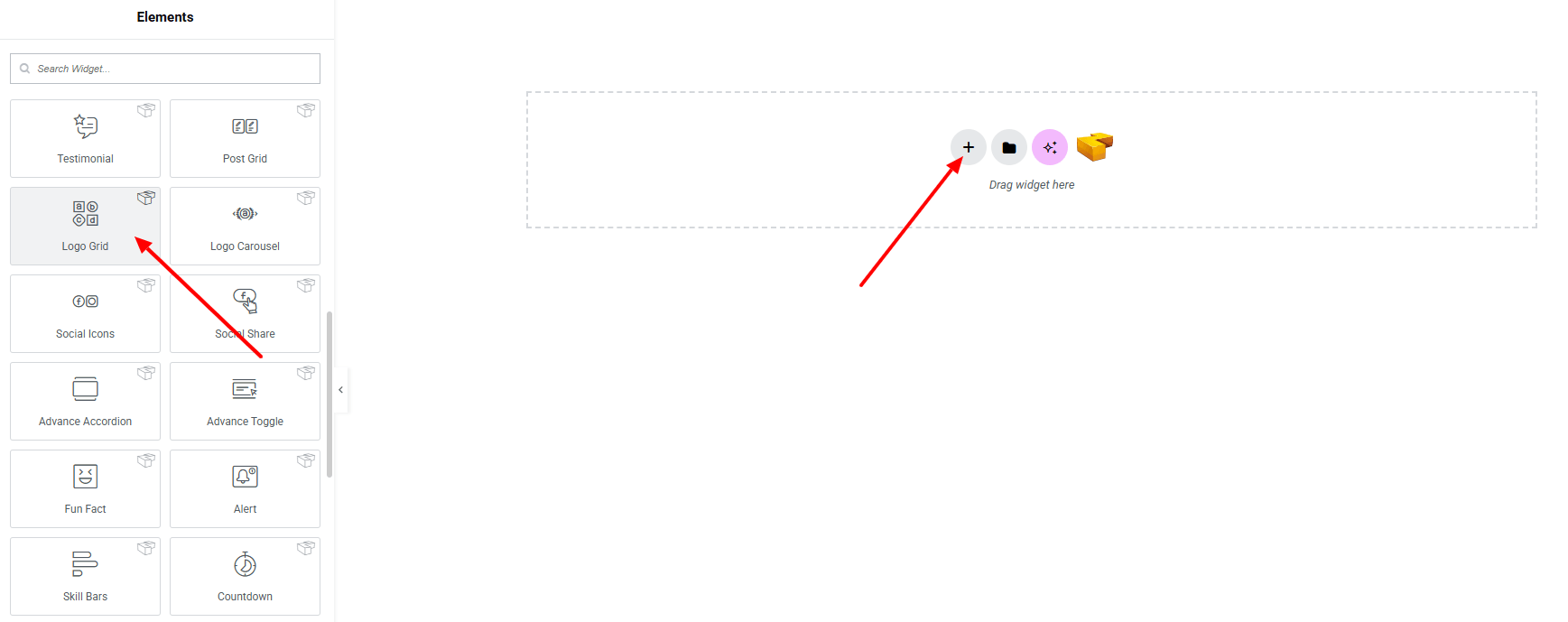
Step 1: Drag the widget
From the left panel, search or choose the Logo Grid of Zyre Addon and simply drag it into your desired section.
Step 2: Content tab
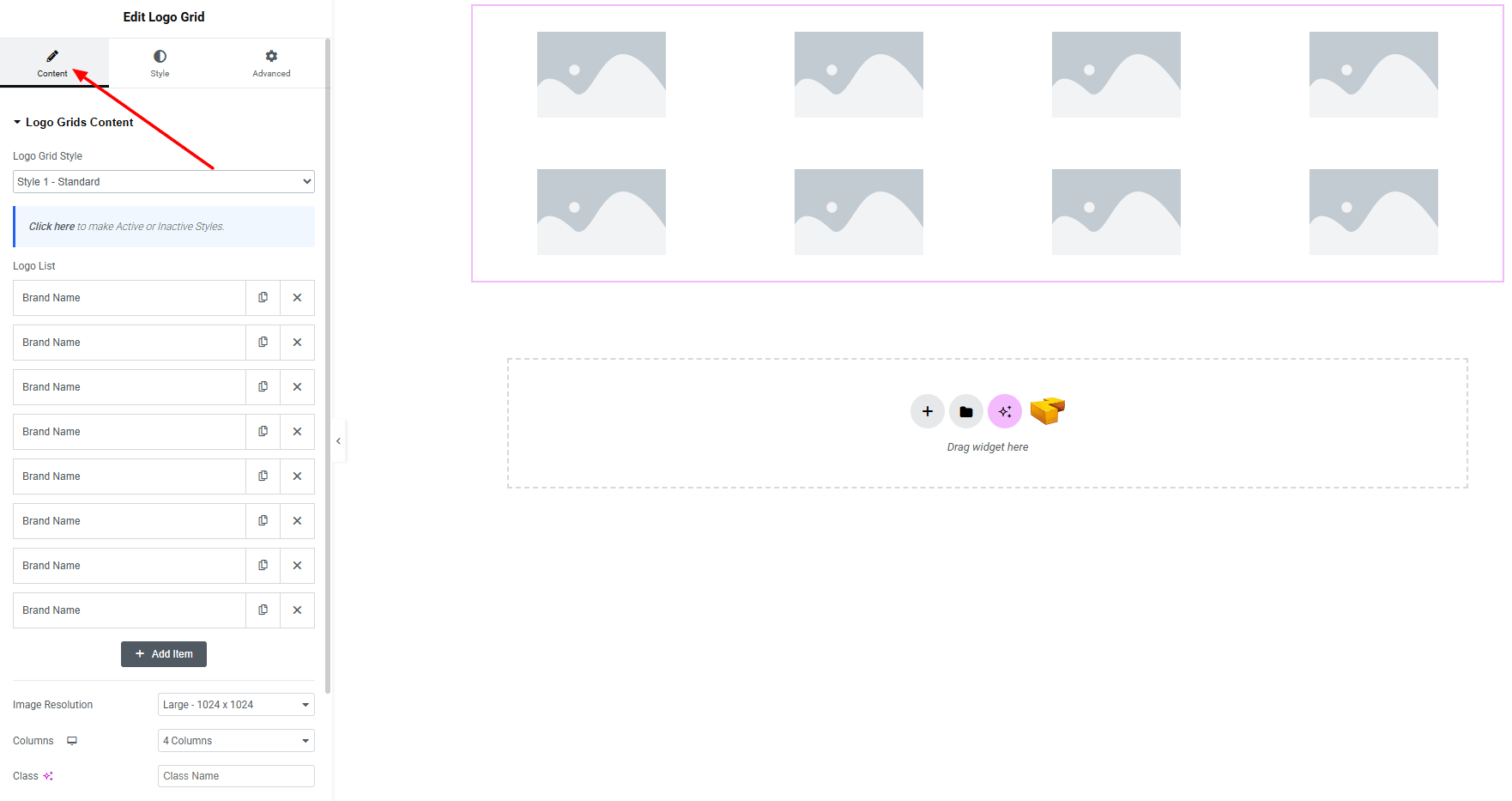
Logo Grids Content:
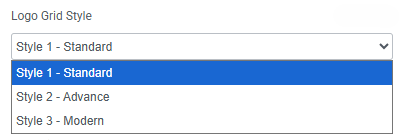
- Logo Grid Style : You can choose a predefined style from here
- Logo List : Create and manage multiple logo items.
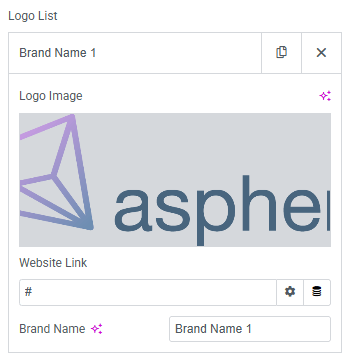
- Logo Image Selection : Pick a logo image.
- Website Link : Set URL for the logo item.
- Brand Name : Set brand name of the logo.
- Image Resolution : Control the quality of logo images.
- Columns : Set how many items will show per row.
- Class : Add a CSS class for custom styling.
Step 3: Style tab
In the Style section, you can customize the General, Logo Item — but make sure you have added them first.
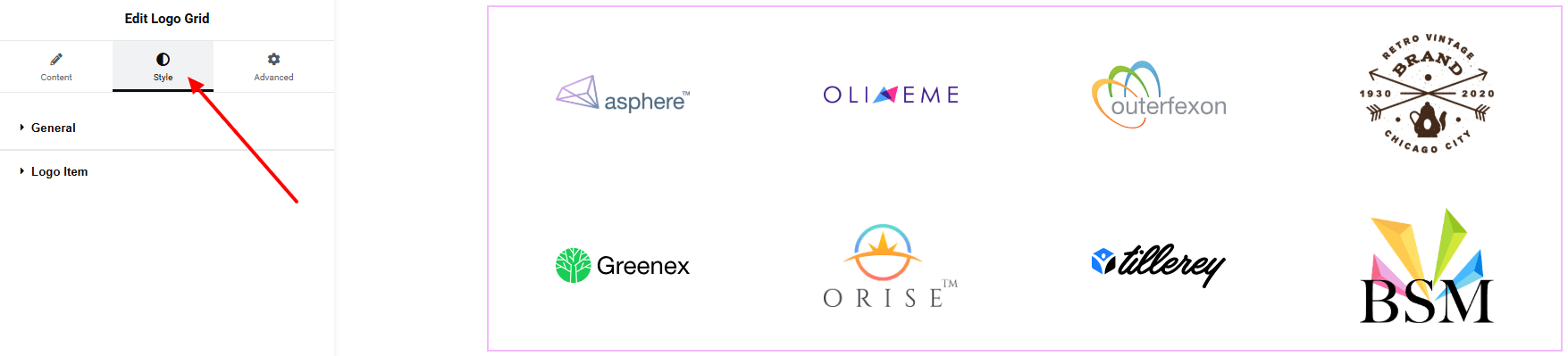
General:
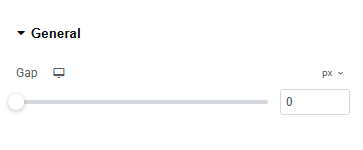
- Gap : Adjust space between each logo.
Logo Item:
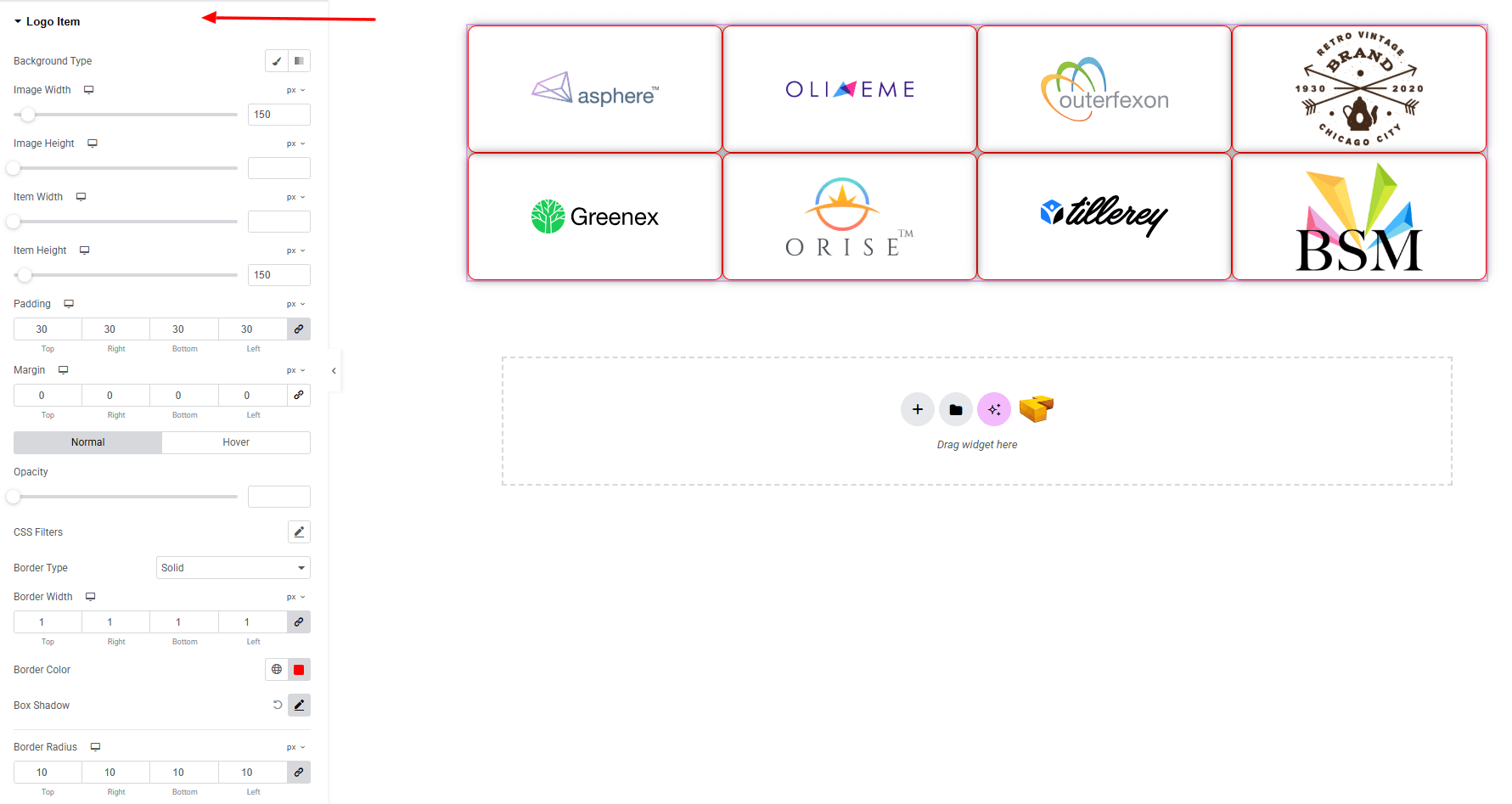
- Background Type : Set unique background colors or gradients. Explore full background settings here.
- Image Width : Set logo image width.
- Item Width : Define the width of the image container.
- Item Height : Define the height of the image container. it will set all the logo image container in same size.
- Padding : Add inner spacing of each item.
- Margin : Add outer spacing of each item.
- For both normal and hover states:
- Opacity : Control transparency of the logo.
- CSS Filters : Apply CSS filter effects.
- Hover Only:
- Transition Duration : Define smoothness and speed of hover effects.
- Hover Animation : Apply animation effects triggered on hover.
- Border Type : Define border style, width, and color for both states.
- Border Radius : Apply rounded corners to each item.
Step 4: Advance tab
If you want to customize the layout, backgrounds, or make your design more engaging, head over to the Advanced section. The Advanced panel is a default Elementor feature. Check out this document to learn more about its features.
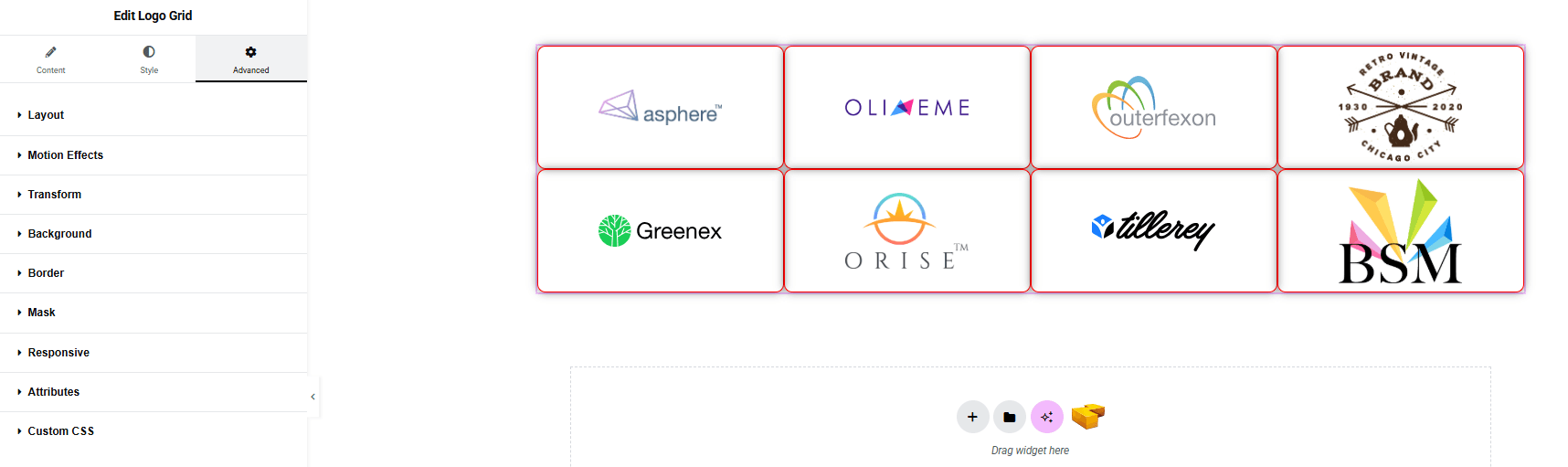
Finally, hit the Publish button and watch your stunning Logo Grid come to life on your webpage!
Everything’s in place!
