

Site Logo
Step-by-Step Tutorial on Using the Site Logo Widget of Zyre Addon
Your website’s identity begins with its logo. With the Site Logo Widget of Zyre Addon for Elementor, you can showcase your brand name in a visually striking way. From typography to styling options, this widget makes it easy to design a logo that stands out and leaves a lasting impression.
Learn How To Use Site Logo Widget:
Exploring the Features of Site Logo Widget
Step 1: Drag the widget
From the left panel, search or choose the Site Logo Widget of Zyre Addon and simply drag it into your desired section.
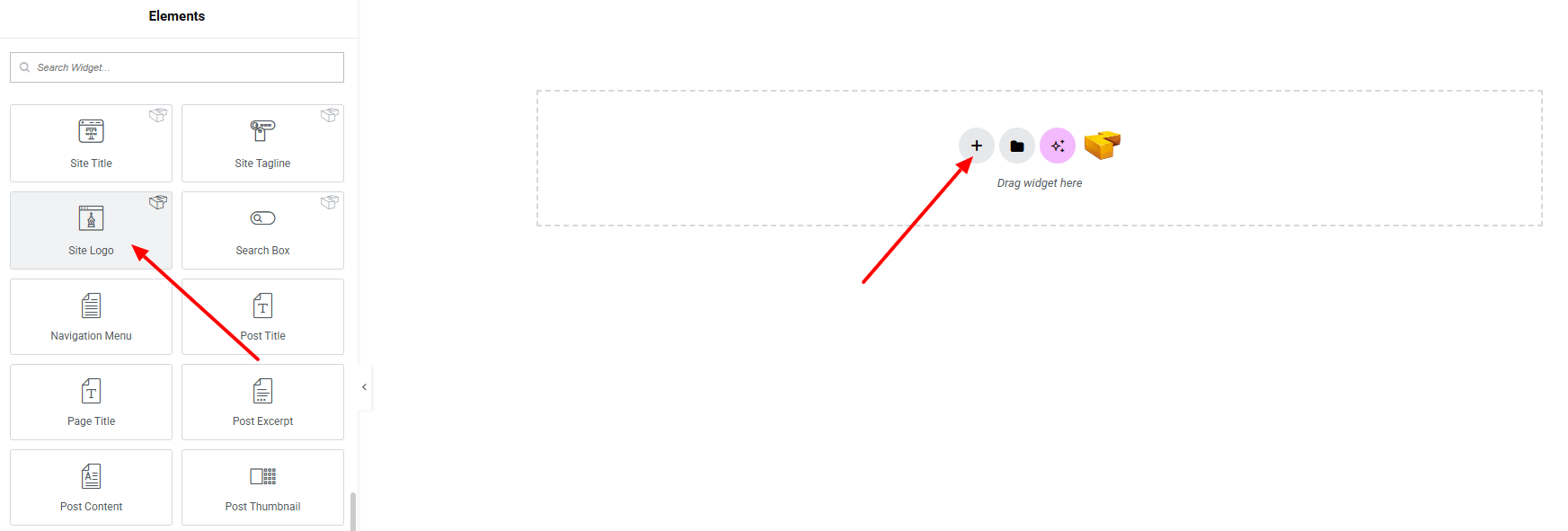
Step 2: Content tab
Site Logo Content:
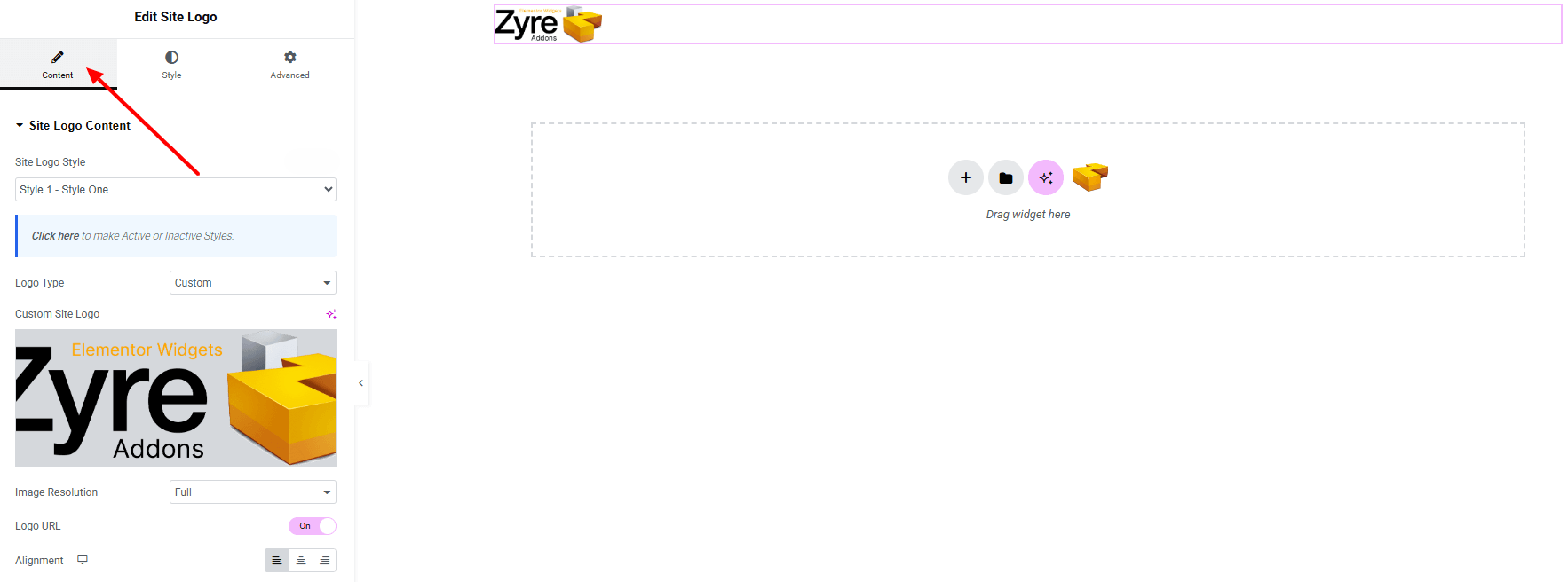
- Site Logo Style : Currently, only one style is available.
- Logo Type : Choose whether to display the default site logo (from WordPress settings) or a custom logo.
- Custom Site Logo : Upload or select a custom image to use as the logo.
- Image Resolution : Define the resolution/size of the logo image for best quality.
- Logo URL : Toggle to enable link to the logo.
- Alignment : Control the positioning of the logo (left, center, right).
Step 3: Style tab
Logo style:
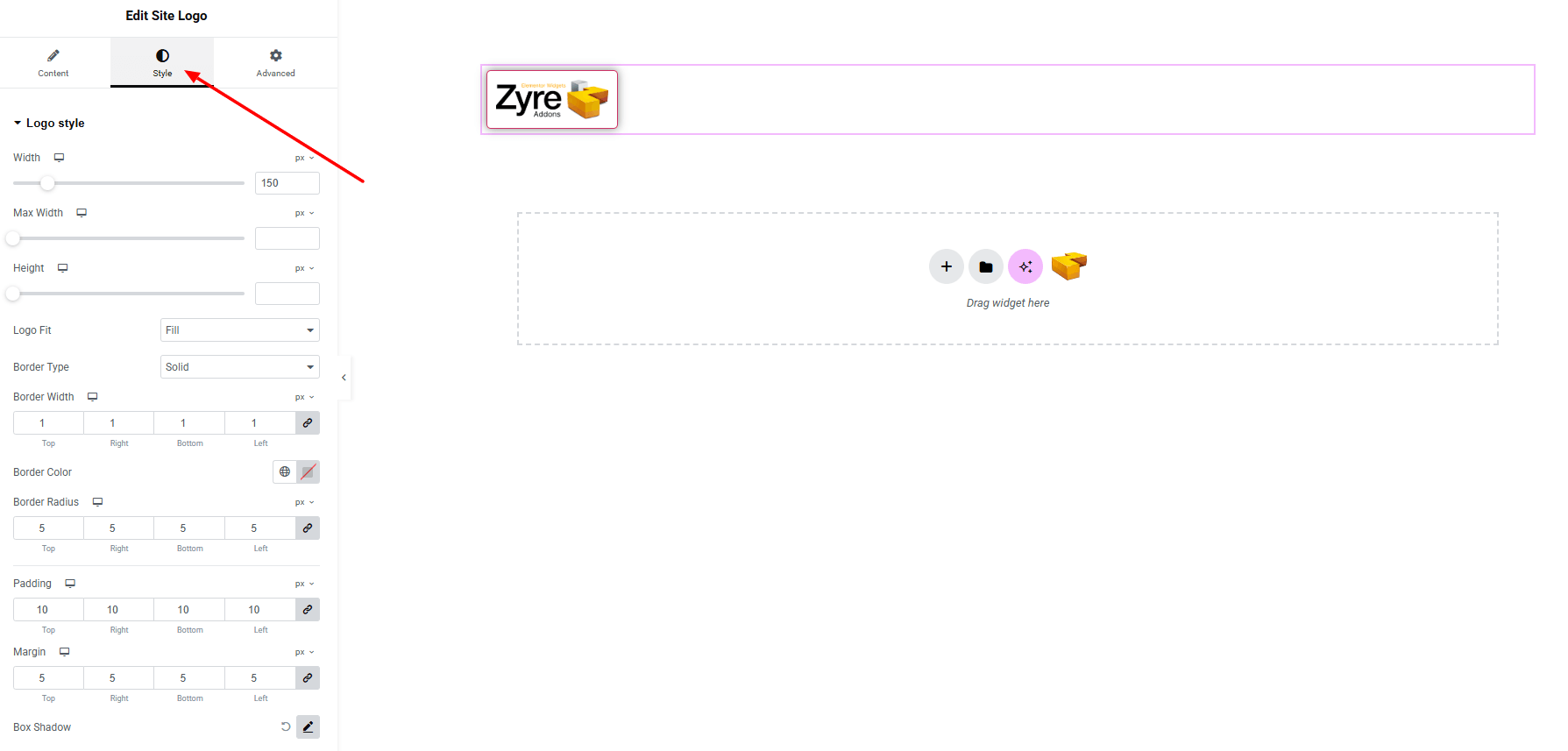
- Width : Set the overall width of the logo image.
- Max-Width : Define the maximum width of the logo.
- Height : Control the logo height for consistent sizing.
- Logo Fit : Control how the logo fits inside its container (cover, contain, fill, etc.).
- Border Type : Define border style, width and color.
- Border Radius : Control corner roundness.
- Padding : Add inner spacing between the logo.
- Margin : Adjust outer spacing around the logo.
- Box Shadow : Add a drop shadow effect.
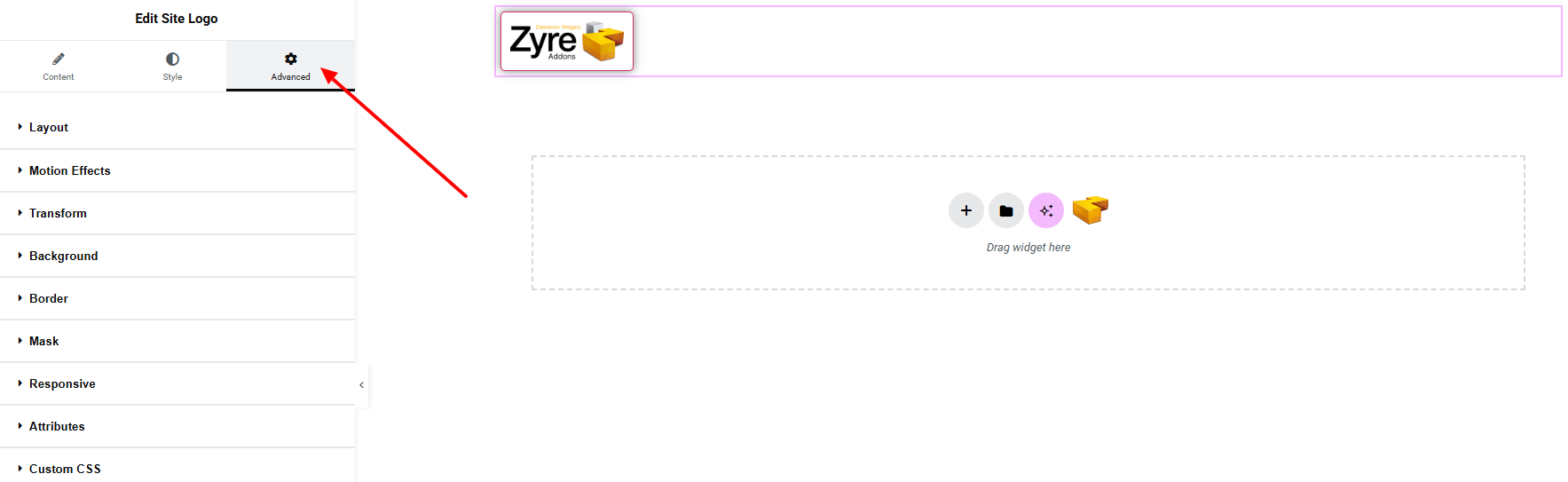
Step 4: Advance tab
If you want to customize the layout, backgrounds, or make your design more engaging, head over to the Advanced section. The Advanced panel is a default Elementor feature. Check out this document to learn more about its features.
Finally, hit the Publish button and watch your stunning Site Logo come to life on your webpage!

You’re fully set up!
