

Post Thumbnail
Step-by-Step Tutorial on Using the Post Thumbnail Widget of Zyre Addon
With Zyre Addon’s Post Thumbnail Widget, you can showcase your posts with visually stunning thumbnails that instantly grab attention. Perfect for blog pages, portfolios, or product listings, this widget allows you to display featured images dynamically, add overlay effects, and link directly to your content. It transforms a simple list of posts into an engaging, scrollable gallery that encourages visitors to explore more.
Learn How To Use Post Thumbnail Widget:
Exploring the Features of Post Thumbnail Widget
Step 1: Drag the widget
From the left panel, search or choose the Post Thumbnail of Zyre Addon and simply drag it into your desired section.
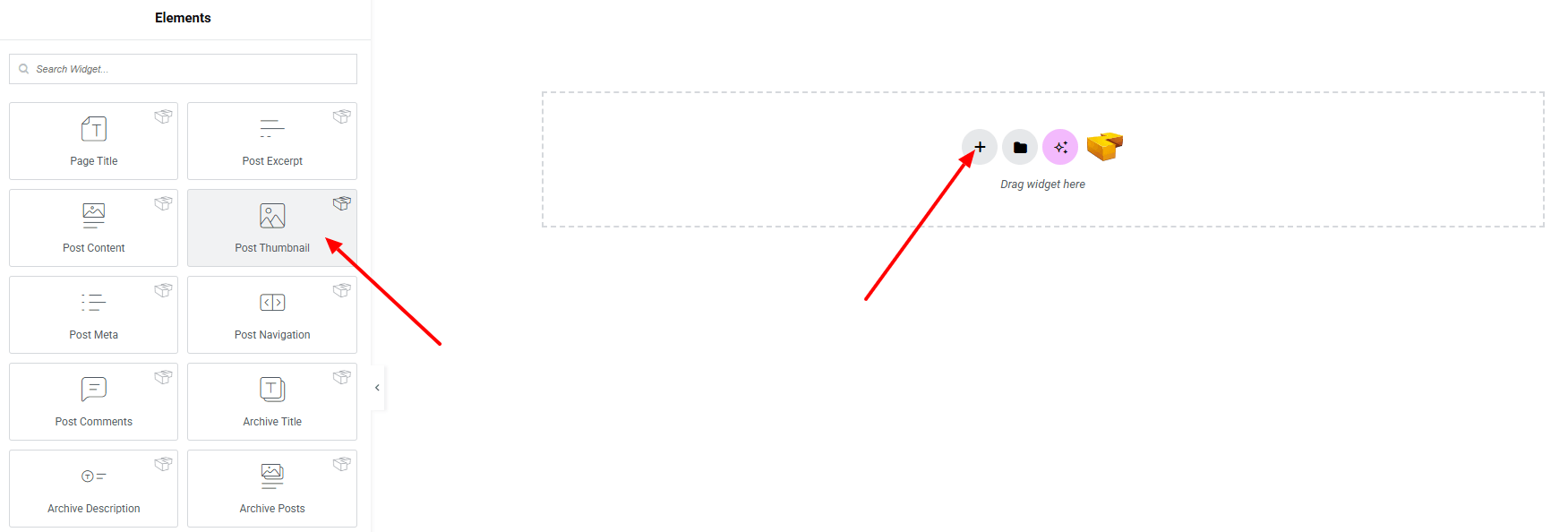
Step 2: Content tab
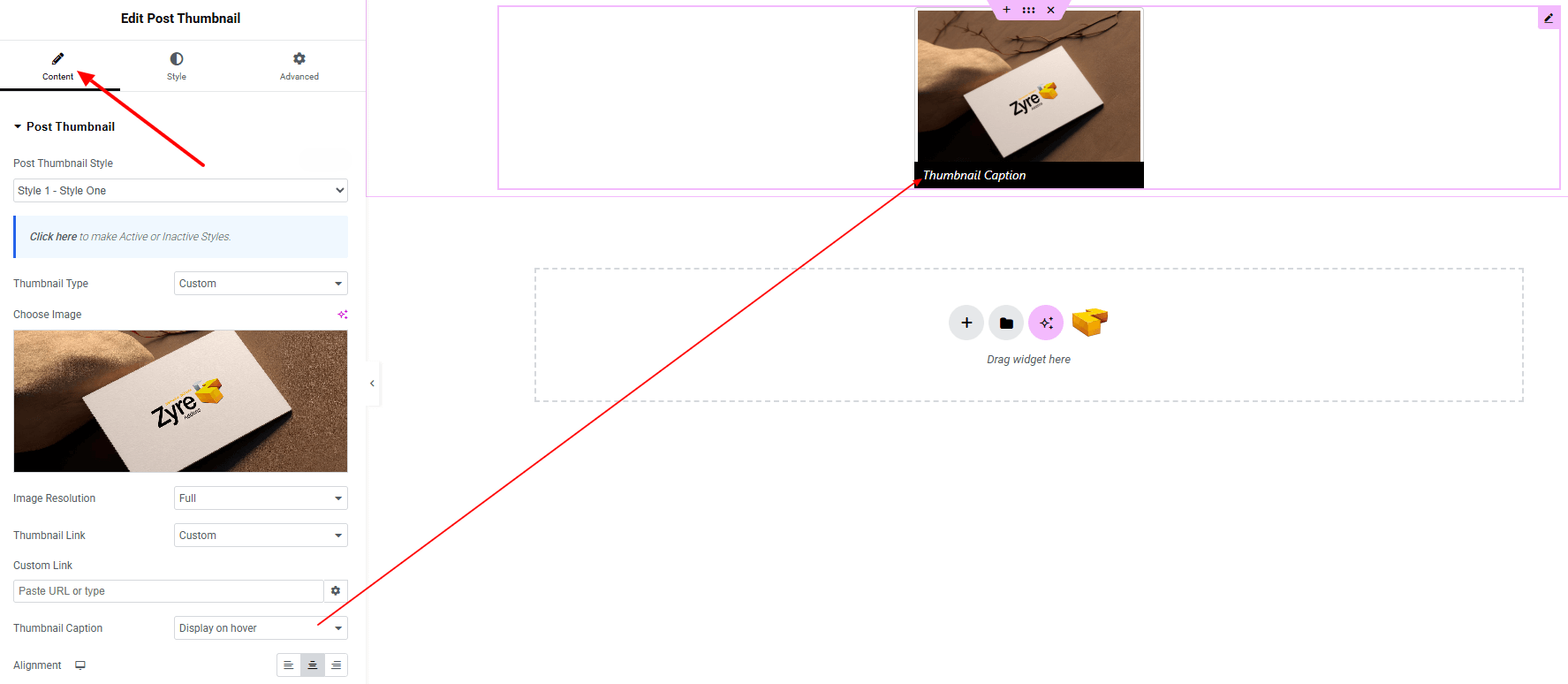
Post Thumbnail:
- Post Thumbnail Style : Currently only one style is available.
- Thumbnail Type : Choose the type of thumbnail to display.
- Choose Image : Select an image from the media library.
- Image Resolution : Set the resolution or size of the thumbnail image.
- Thumbnail Link : Add a clickable link to the thumbnail.
- Thumbnail Caption : Display the caption normally or on hover.
- Alignment : Control the position of the thumbnail (left, center, right).
Step 3: Style tab
In the Style section, you can customize the Thumbnail Style, Caption Style— but make sure you have added them first.

Thumbnail Style:
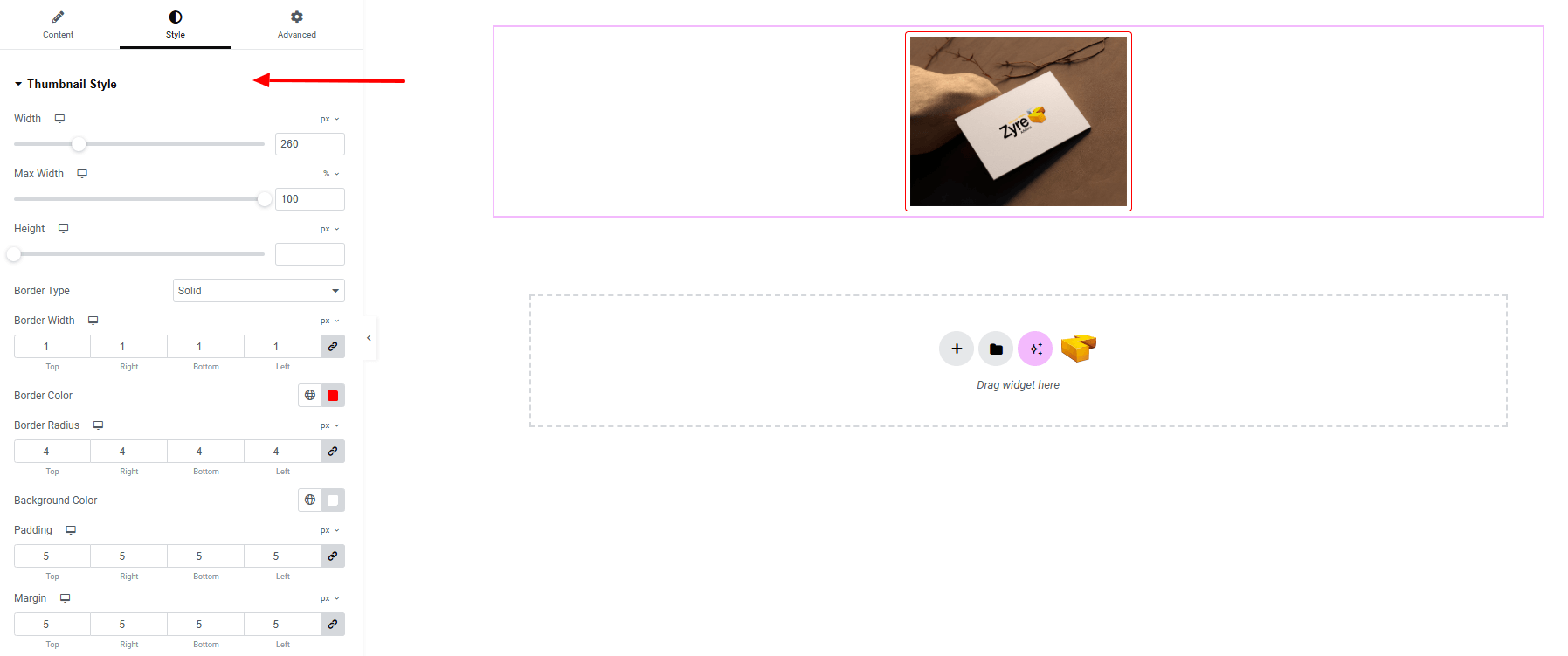
- Width : Set the overall width of the thumbnail.
- Max Width : Set the maximum width of the thumbnail.
- Height : Adjust the height of the thumbnail image.
- Border Type : Choose the border style, width and color.
- Border Radius : Control the roundness of the corners.
- Background Color : Apply a background color behind the thumbnail.
- Padding : Adjust the inner spacing inside the thumbnail area.
- Margin : Control the outer spacing around the thumbnail.
Caption Style:
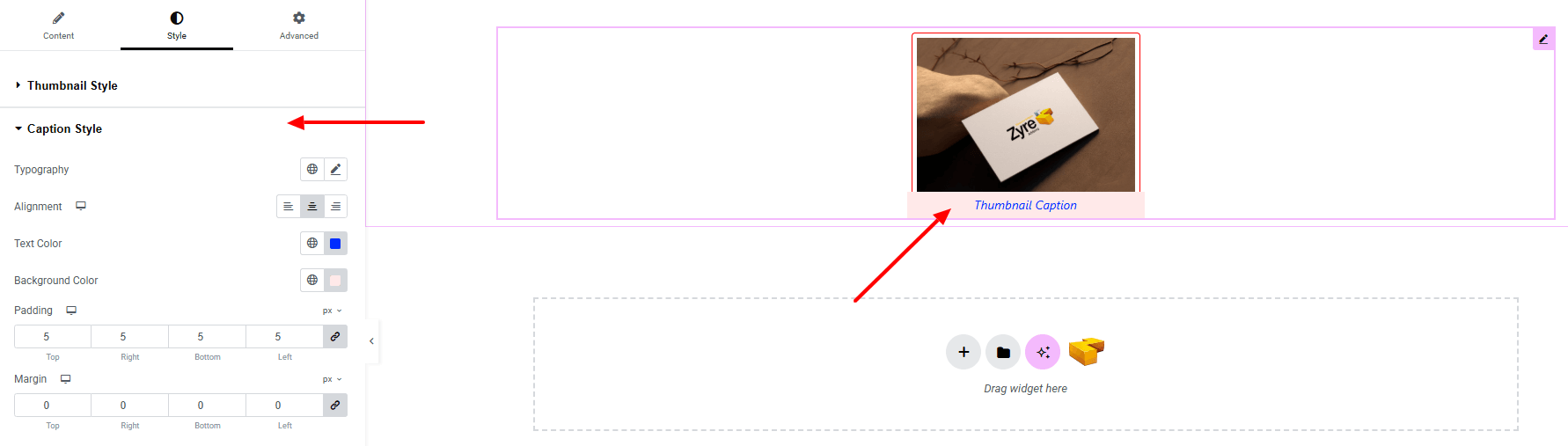
- Typography : Adjust font family, size, weight, transform, style, decoration, line height, letter spacing, and word spacing. Explore full typography settings here.
- Alignment : Set the caption alignment (left, center, right).
- Text Color : Choose the color of the caption text.
- Background Color : Apply a background color behind the caption text. Explore full background settings here.
- Padding : Control the inner spacing around the caption text.
- Margin : Adjust the outer spacing around the caption area.
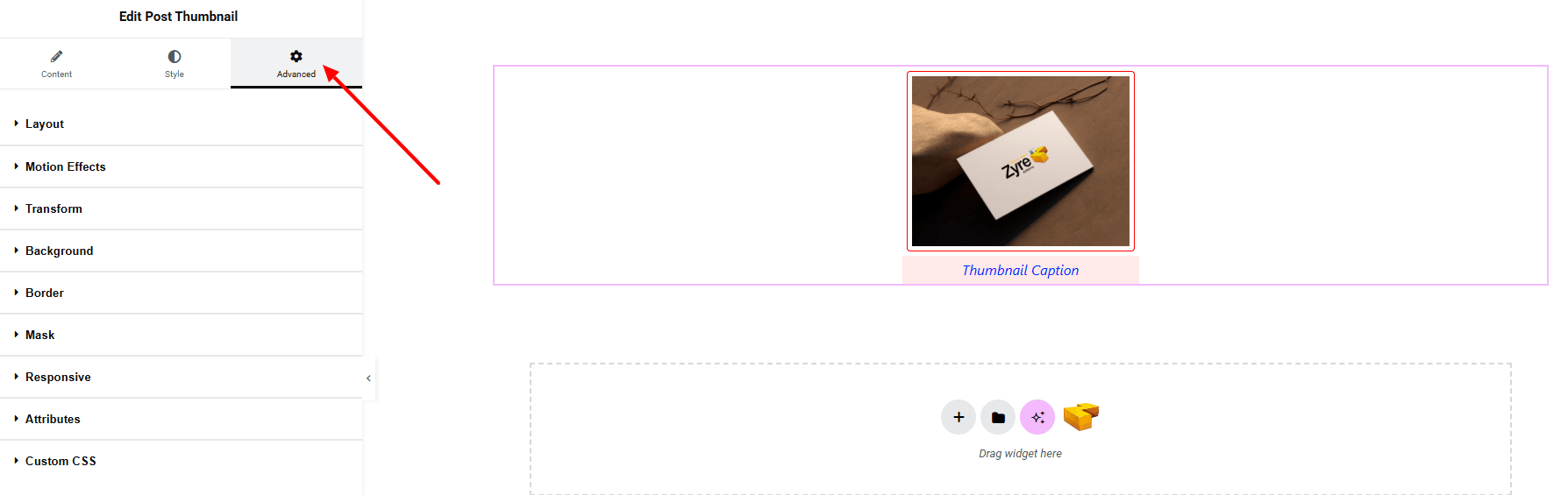
Step 4: Advance tab
If you want to customize the layout, backgrounds, or make your design more engaging, head over to the Advanced section. The Advanced panel is a default Elementor feature. Check out this document to learn more about its features.
Finally, hit the Publish button and watch your stunning Post Thumbnail come to life on your webpage!

Everything’s good to go now!
