

Post Content
Step-by-Step Tutorial on Using the Post Content Widget of Zyre Addon
It’s a widget to display post content dynamically. You can build a single page template from Zyre Addons > Theme Builder and choose this widget. Want to take your blog or page layouts to the next level? The Post Content widget in Zyre Addon is the perfect tool. It allows you to dynamically pull in your post’s main content and style it beautifully with Elementor controls.
Learn How To Use Post Content Widget:
Exploring the Features of Post Content Widget
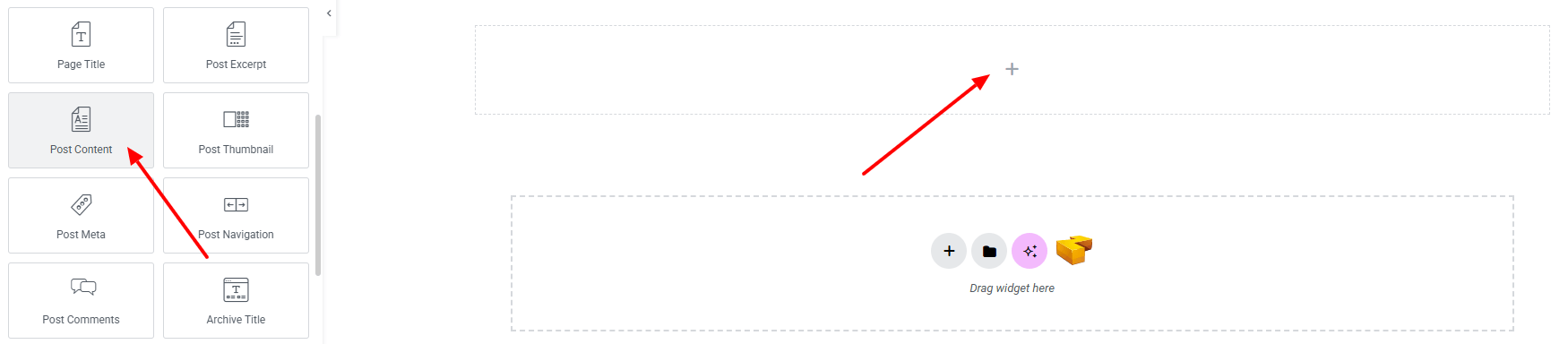
Step 1: Drag the widget
From the left panel, search or choose the Post Content Widget of Zyre Addon and simply drag it into your desired section.
Step 2: Content tab
Post Content:
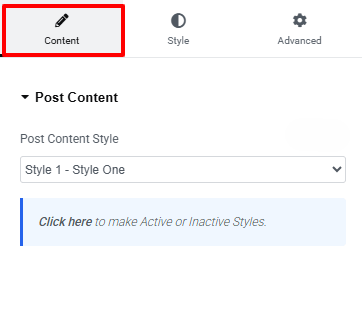
- Post Title Style : Currently, only one style is available.
Step 3: Style tab
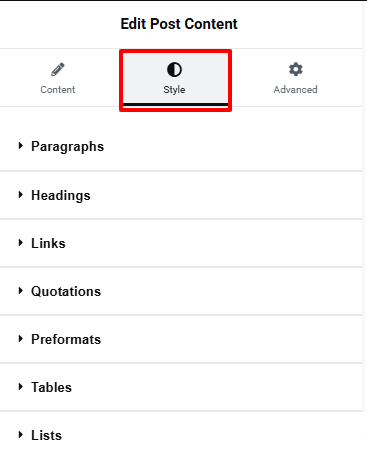
On style tab you can style the paragraphs, Headings, Links, Quotations, Preformats, Tables and Lists.
Paragraphs:
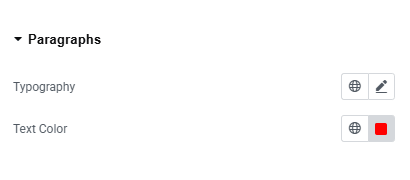
- Typography : Here you can customize the font family, size, weight, transform, style, decoration, line height, letter spacing, and word spacing for your text. Explore full typography settings here.
- Text Color : Choose colors for paragraphs.
Headings:
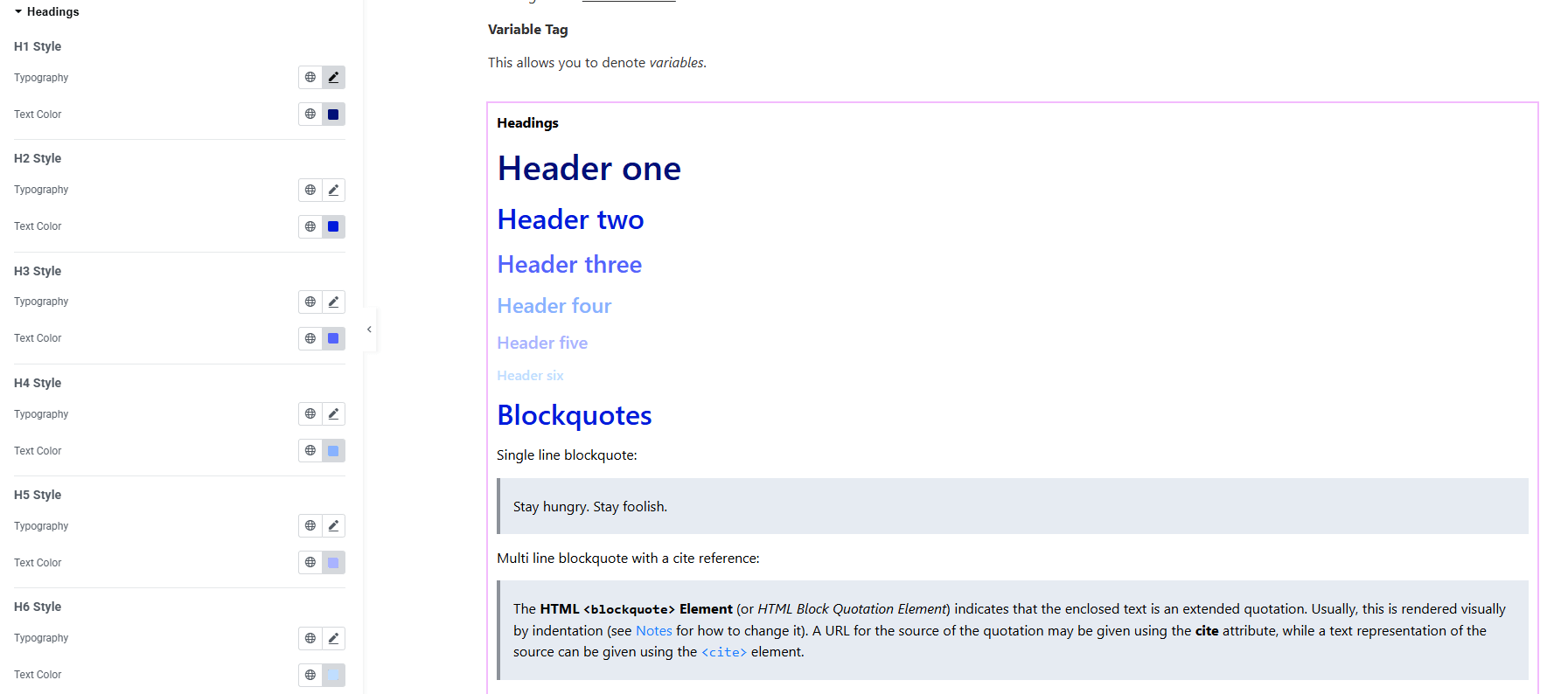
- Typography : Here you can customize the font family, size, weight, transform, style, decoration, line height, letter spacing, and word spacing for your text. Explore full typography settings here.
- Text Color : Choose colors for headings.
Links:
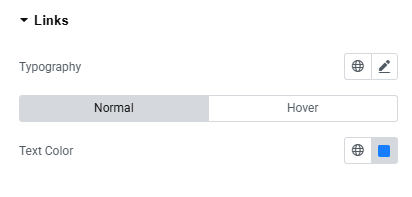
- Typography : Here you can customize the font family, size, weight, transform, style, decoration, line height, letter spacing, and word spacing for your text. Explore full typography settings here.
- Text Color : Choose colors for headings.
Quotations:
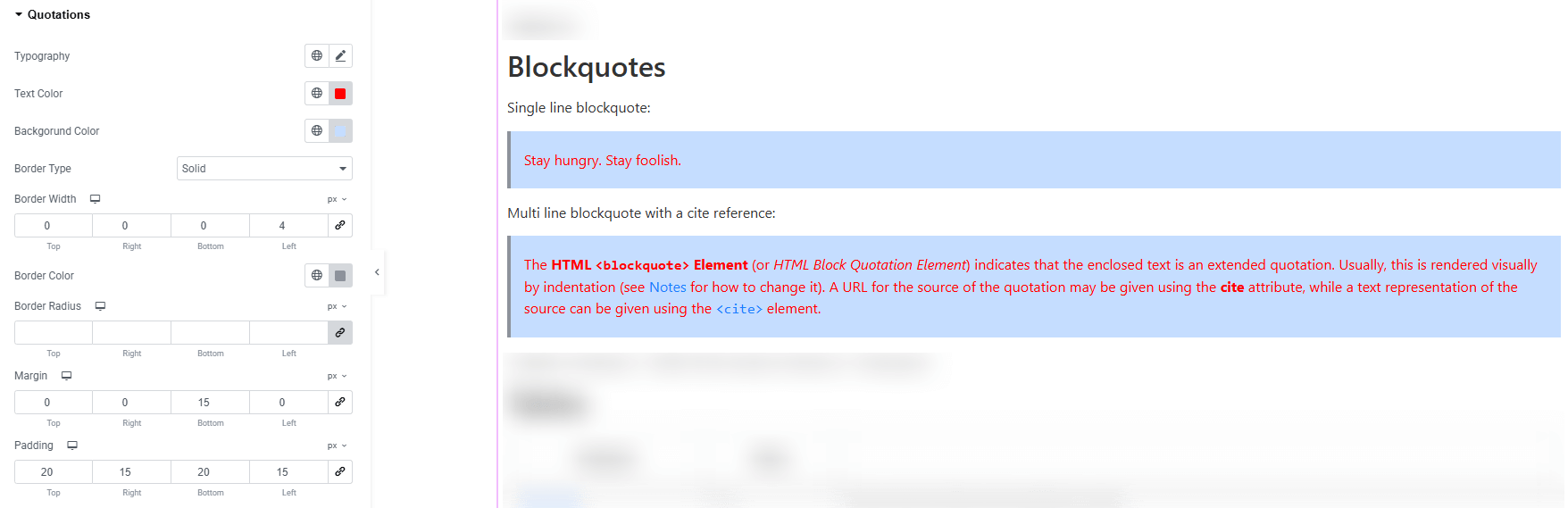
- Typography : Here you can customize the font family, size, weight, transform, style, decoration, line height, letter spacing, and word spacing for your text. Explore full typography settings here.
- Text Color : Choose colors for quotes.
- Background Color : Set quotes background color.
- Border Type : Define border style, width and color.
- Border Radius : Control corner roundness.
- Padding : Adjust inner spacing around the element.
- Margin : Adjust outer spacing around the element.
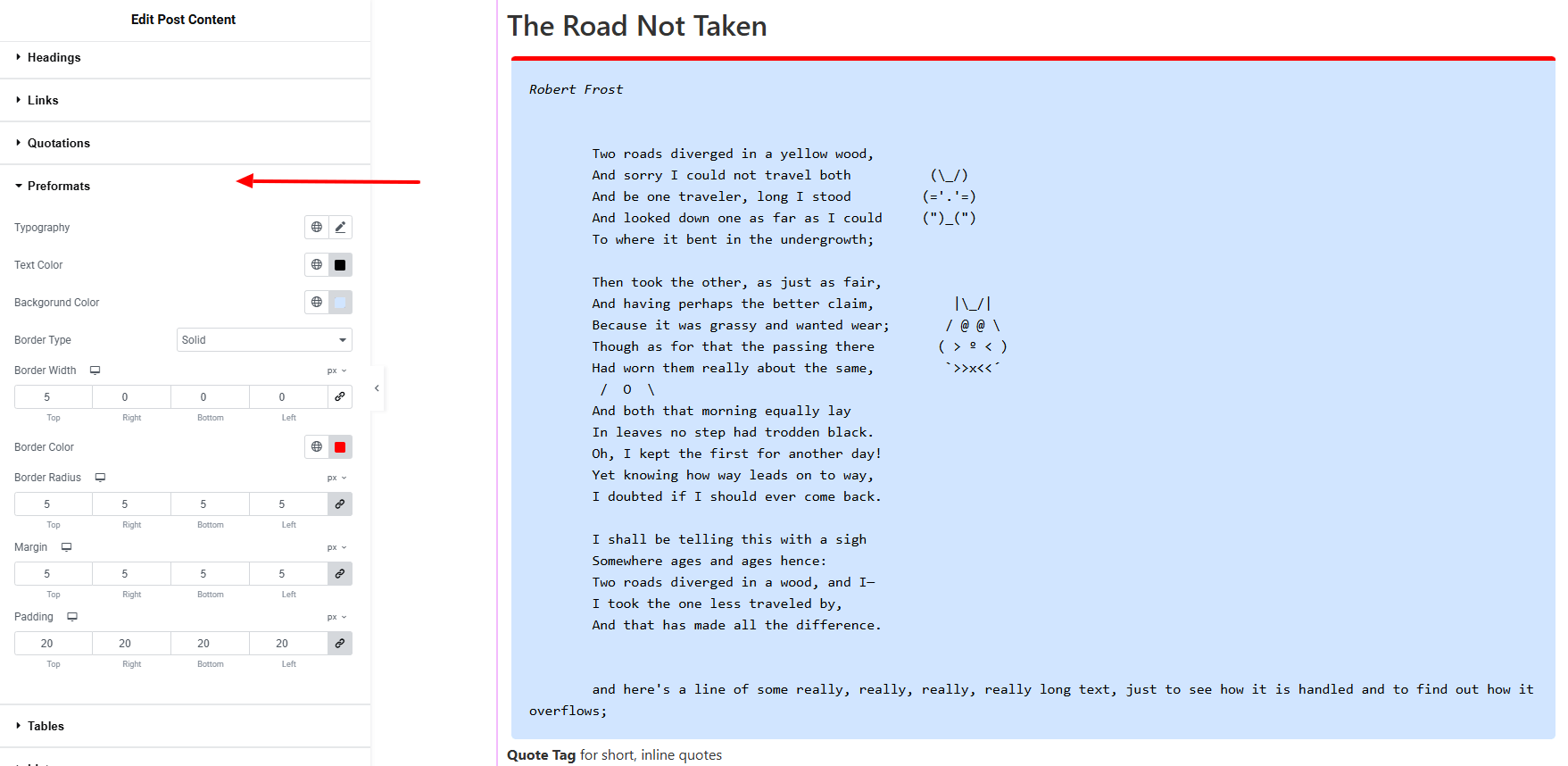
Preformats:
You’ll find the same design options for the Preformats Section as in the Quotations Section— giving you full freedom to style it just the way you imagine.
Lists:
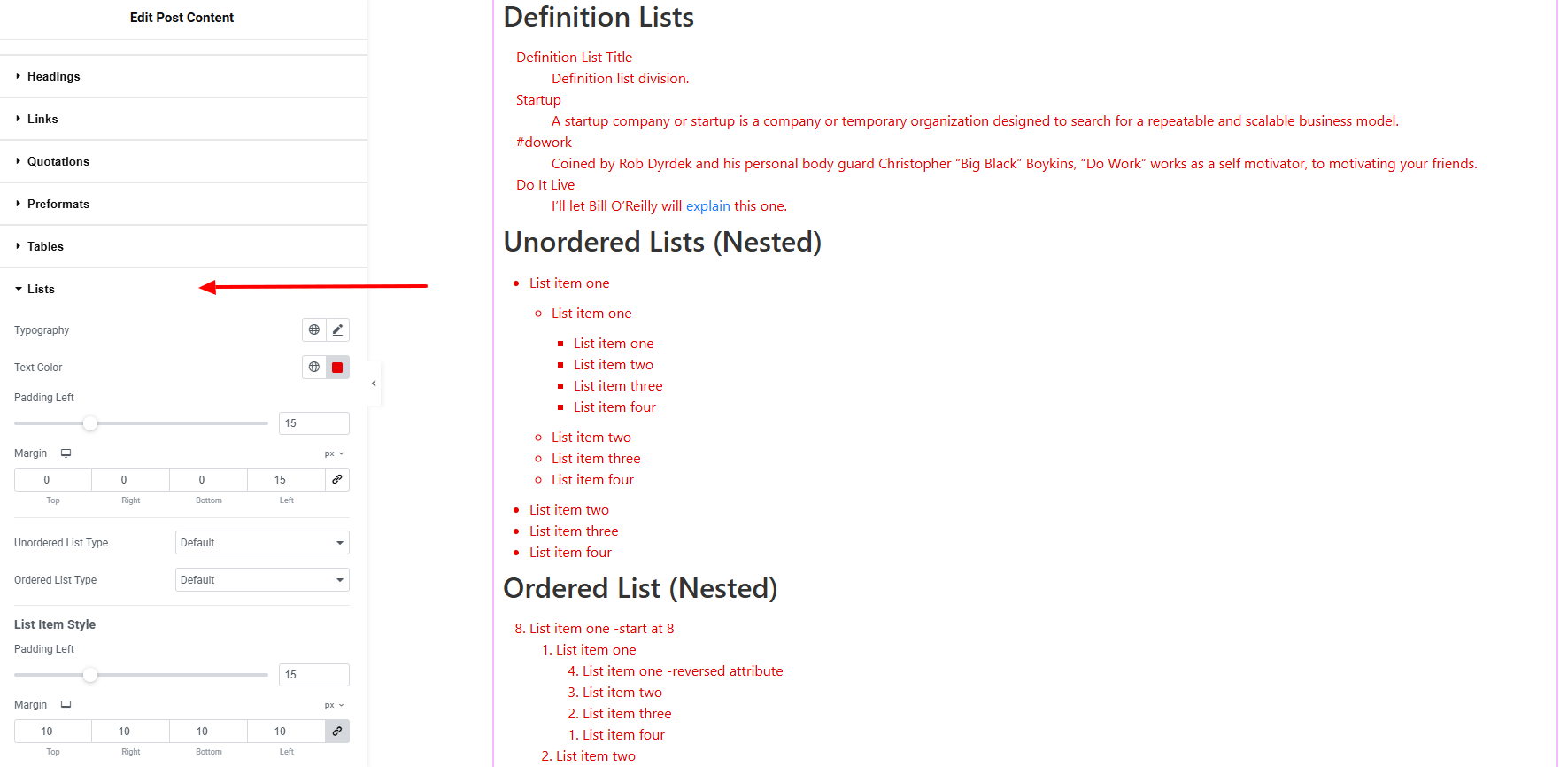
- Typography : Here you can customize the font family, size, weight, transform, style, decoration, line height, letter spacing, and word spacing for your text. Explore full typography settings here.
- Text Color : Choose colors for list items.
- Padding Left : Adjust left side spacing.
- Margin : Adjust outer spacing of the items.
- Unordered List Type : Set the list type.
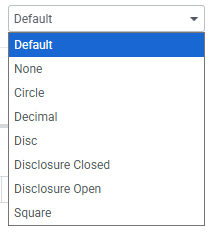
- Ordered List Type : Set the list type.
List Item Style:
- Padding Left : Adjust left side spacing.
- Margin : Adjust outer spacing of the item.
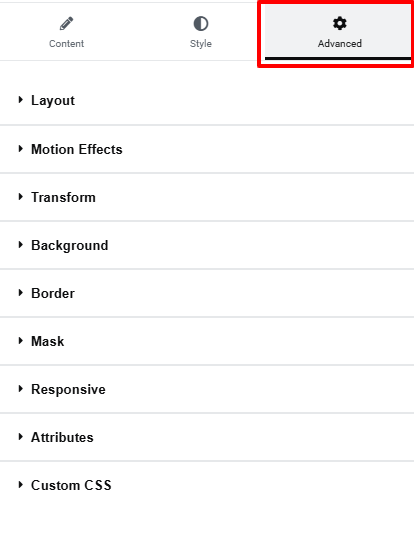
Step 4: Advance tab
If you want to customize the layout, backgrounds, or make your design more engaging, head over to the Advanced section. The Advanced panel is a default Elementor feature. Check out this document to learn more about its features.
That’s a wrap — you’re ready!
