Manage Typography
Tutorial on Typography styling of Zyre Addon
With Zyre Addon’s Typography controls, you can fine-tune every detail of your text styling. From fonts and weights to spacing and alignment, you get complete control to craft clean, consistent, and professional typography that elevates your entire design. The same settings and controls apply to all widgets, giving you consistent design freedom throughout your site.
Learn How To Use Typography:
Exploring the Features of Typography.
Typography Style:
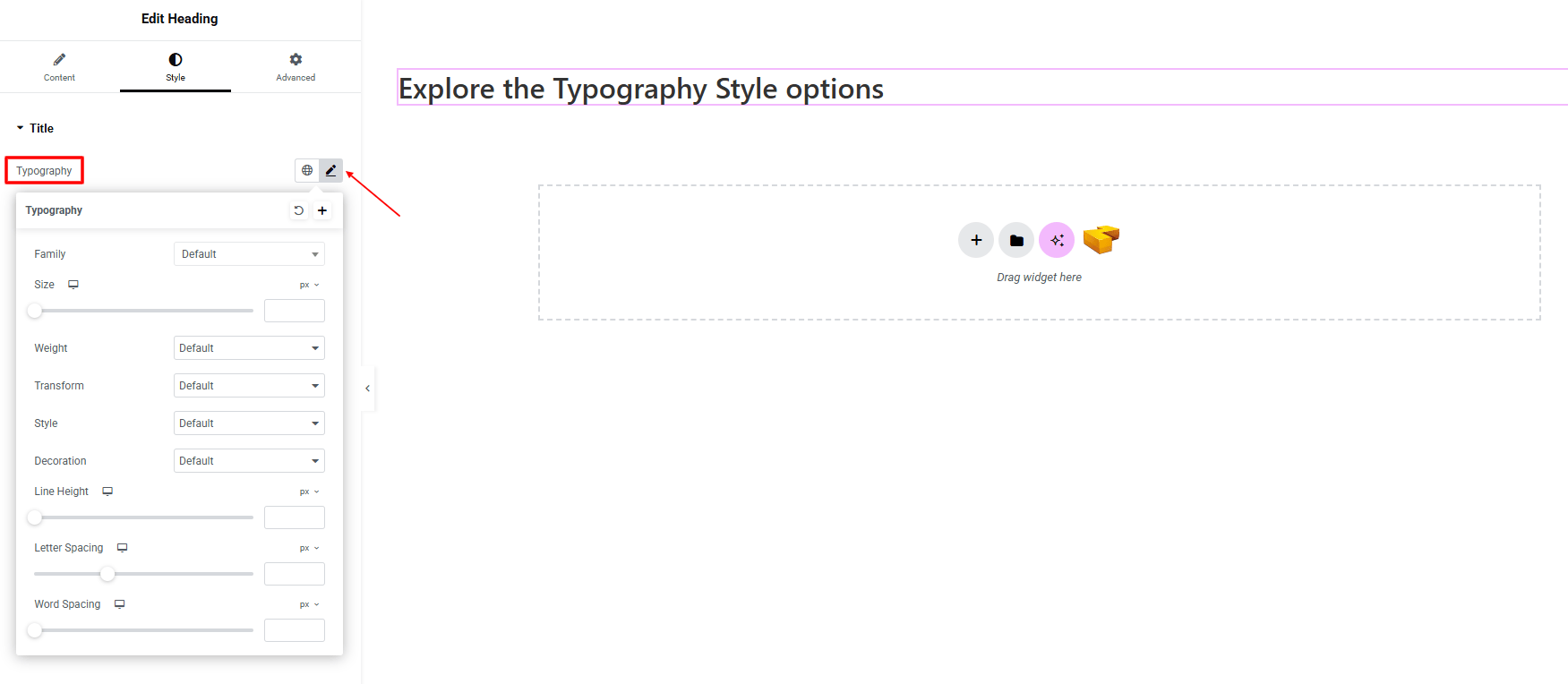
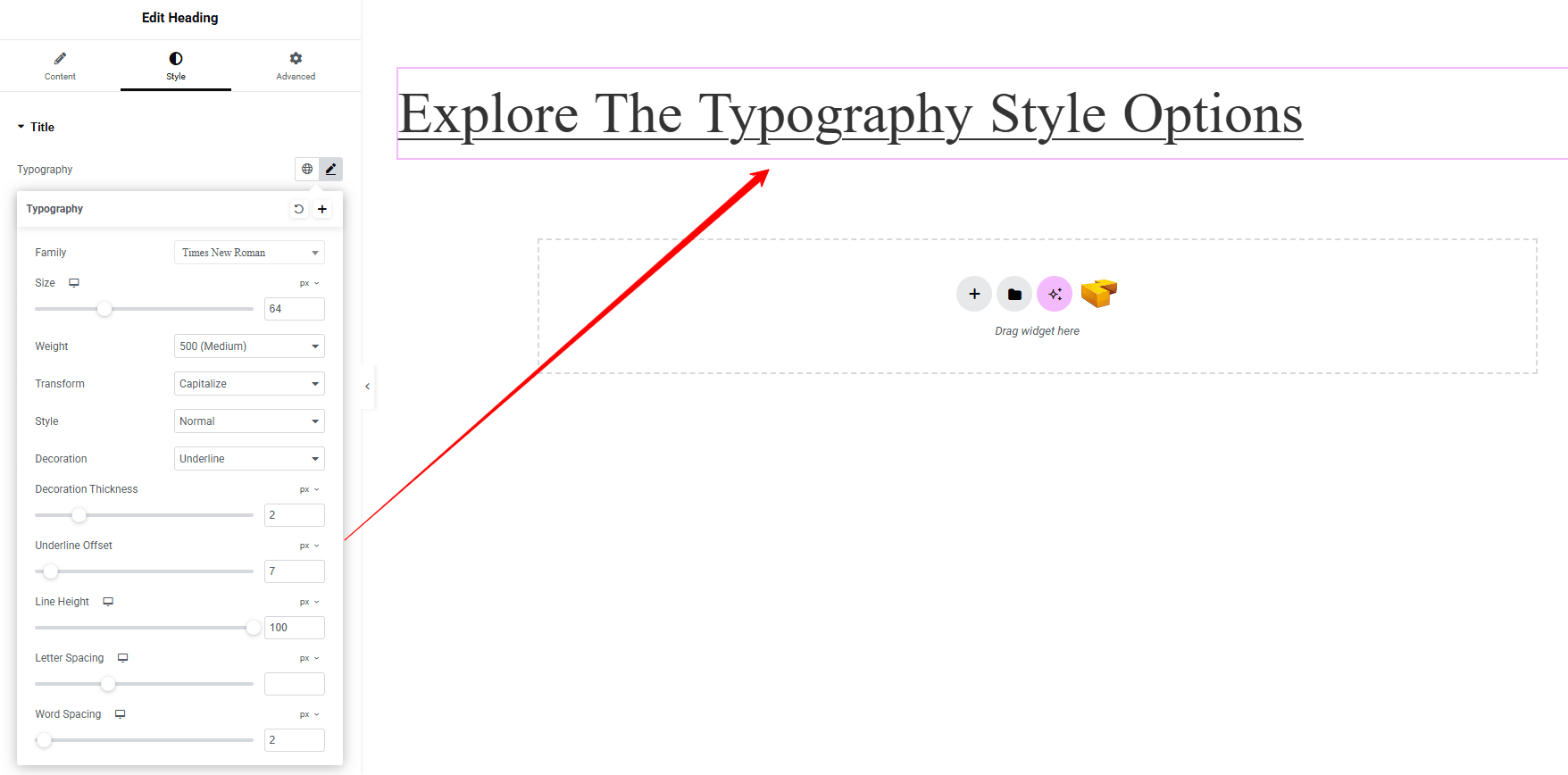
- Family : Choose the typeface for your text.
- Size : Adjust the size of the text.
- Weight : Set how bold or light the text appears.
- Transform : Control capitalization (none, uppercase, lowercase, capitalize).
- Style : Apply normal, italic, or oblique styling.
- Decoration : Add underline, overline, or line-through effects.
- Decoration Thickness : Adjust the thickness of the text decoration.
- Underline Offset : Control the distance between the underline and the text.
- Line Height : Set the vertical spacing between lines of text.
- Letter Spacing : Adjust the spacing between individual letters.
- Word Spacing : Adjust the spacing between words.
Note: Decoration Thickness and Underline Offset are exclusive features of the Zyre Addon, giving you finer control than the default Elementor options.
These Typography settings give you full control over how your text looks and feels, ensuring every element matches your design style. By fine-tuning each option, you can create clear, balanced, and visually consistent text across your entire layout. Once you adjust the styles, the preview below shows exactly how your typography will appear.